Using the desktop app
helia-gui takes a capture from a file on disk to a stacked, sharpened and
coloured image in nine steps, shown down the left of the window. You do not have to visit them
all: open a file and press Stack with recommended settings, and Helia does
the rest (see Quick start). The steps are there when you want
to look closer or change something. The screenshots on this page are produced
by the test suite from a synthetic capture, so they always match the current
interface.
The window has four areas:
- the top bar, with the capture details, the compute backend and the Open and Export buttons;
- the pipeline rail on the left, one row per step, each with its state and a one-line hint about what to do next;
- the viewer in the middle, with a frame scrubber and the quality curve underneath;
- the inspector on the right, which shows the settings of the selected step.
Click a step in the rail to select it. Everything that takes time (decoding, scoring, stacking, colouring, file dialogs) runs on background threads, so the window stays responsive and a stack can be cancelled at any moment.
What the window tells you
The rail hints. Under each step is a plain sentence about what to do next, which changes as you go: Open a capture, Scoring the frames, please wait, Ready: press Stack, Done: sharpen, colour and export, Save as TIFF, PNG or FITS. A step that has nothing to do yet says what it is waiting for, such as Open a capture first.
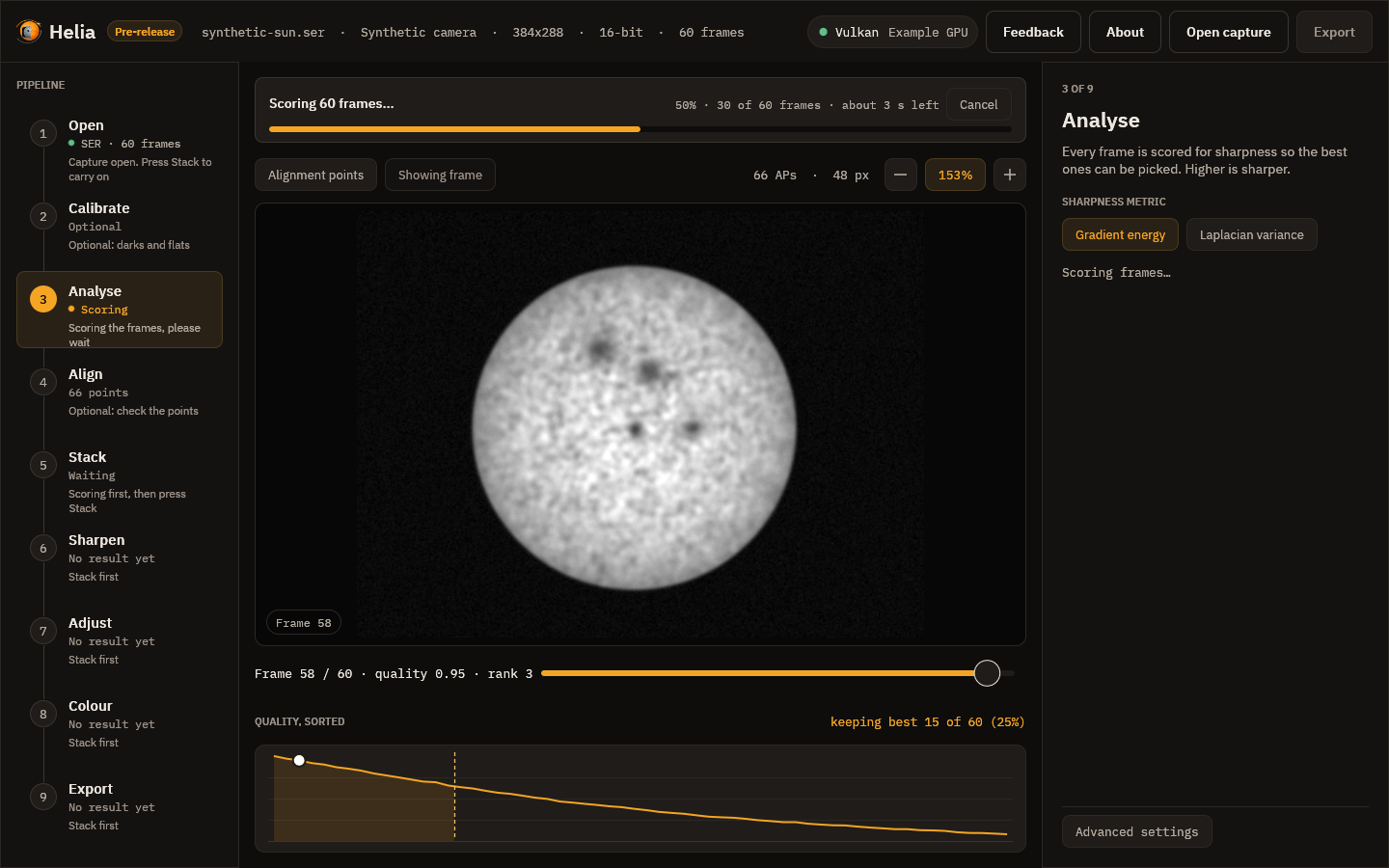
Notices while it works. Whenever Helia is busy, a notice appears above the picture: the stage in plain words, a progress bar, and a Cancel button where stopping makes sense. Anything that takes longer than about a seventh of a second gets one, so the window never looks frozen. Quicker work does not flash.
| Notice | Shown while |
|---|---|
| Opening the file and indexing its frames | a capture is opened (no bar: the length is not known) |
| Converting the video with ffmpeg | a video is converted to a capture, where that is offered |
| Decoding the frame | a frame is read for the viewer |
| Scoring N frames | every frame is scored; the bar counts frames and shows the time left |
| Building the reference image, Aligning the frames, Measuring the alignment points, Stacking the best frames, Finishing the image | the stages of a stack, one overall bar for the run |
| Colourising the image | a colour look is applied to the stack |
| Writing the file | the result is saved |
The time left appears once enough of the work is done to estimate it (after a second and a twentieth of the way through), and is rounded to whole seconds. Screen readers are given the same sentence: the stage, the percentage and the time left.
Messages when it is done. A short message appears at the bottom right when something finishes, such as Stacked 250 of 1,000 frames in 2.1 s or Saved /path/sun.tif. It fades after a few seconds, or press Close. A failure, such as Could not open file: not a SER file, stays until you press Dismiss. The same failure twice shows once.
1. Open
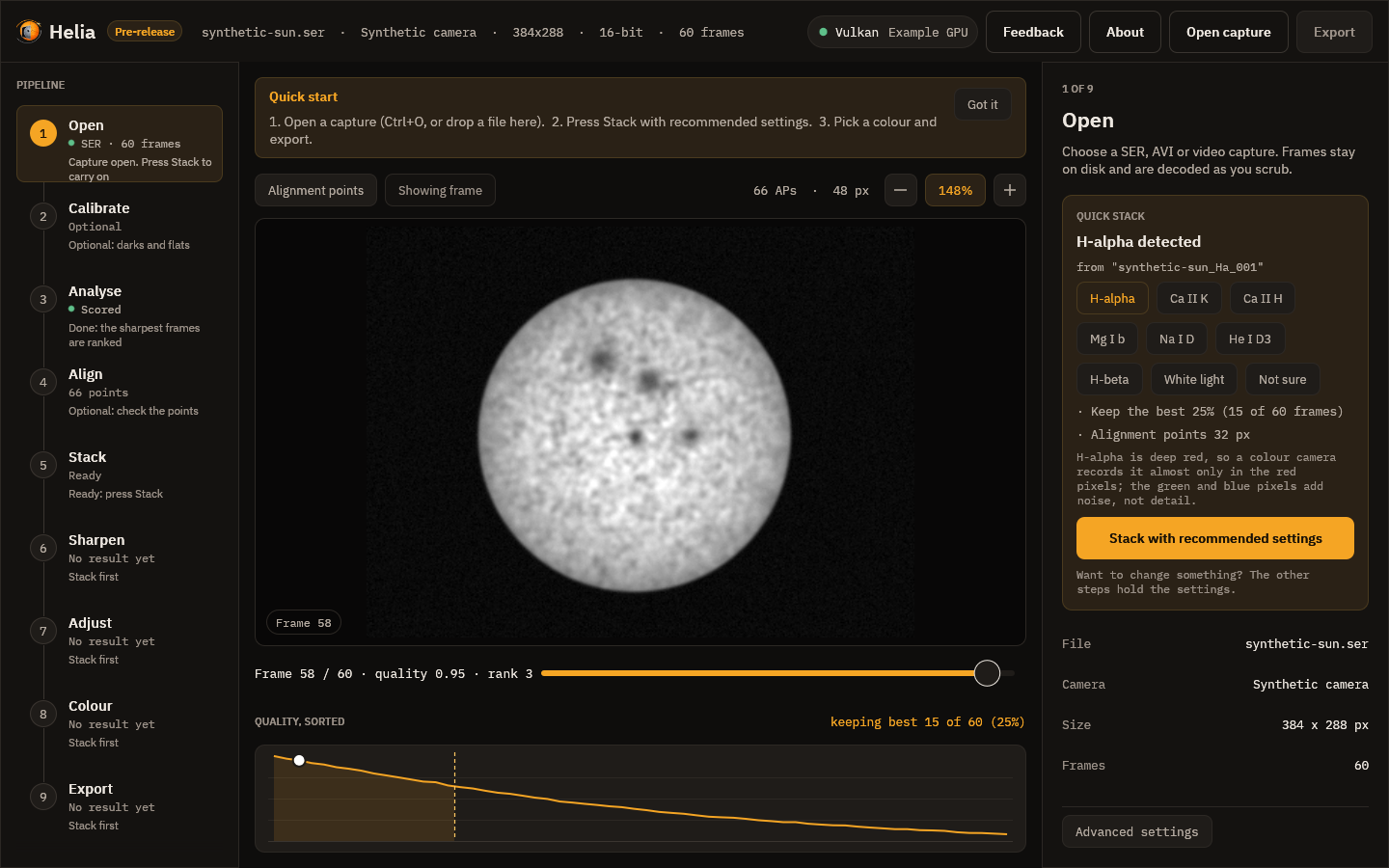
Choose Open capture in the top bar (or press Ctrl+O), or drop a file on the
window. A Recent menu appears next to it once you have opened something: it lists
the last eight captures, newest first, and opens one when you choose it (a file that
has gone is dropped with a message). You can also start Helia with a capture:
helia-gui capture.ser, or Open with > Helia in your file manager once Helia is
installed. Helia reads SER files and uncompressed AVI files, including the large
OpenDML files SharpCap writes. With the optional ffmpeg installed it also
opens MP4, MOV, M4V, MKV and WebM files and compressed AVI files (see
Installation).
A video is decoded once, by ffmpeg, before anything else happens, and the top
bar shows "Decoding video with ffmpeg" with a percentage while it runs; opening
another file cancels it. Afterwards scrubbing is as quick as for a SER file,
because the frames are on disk uncompressed. Changing the Channel chip
decodes the video again, because ffmpeg extracts the colour channel.
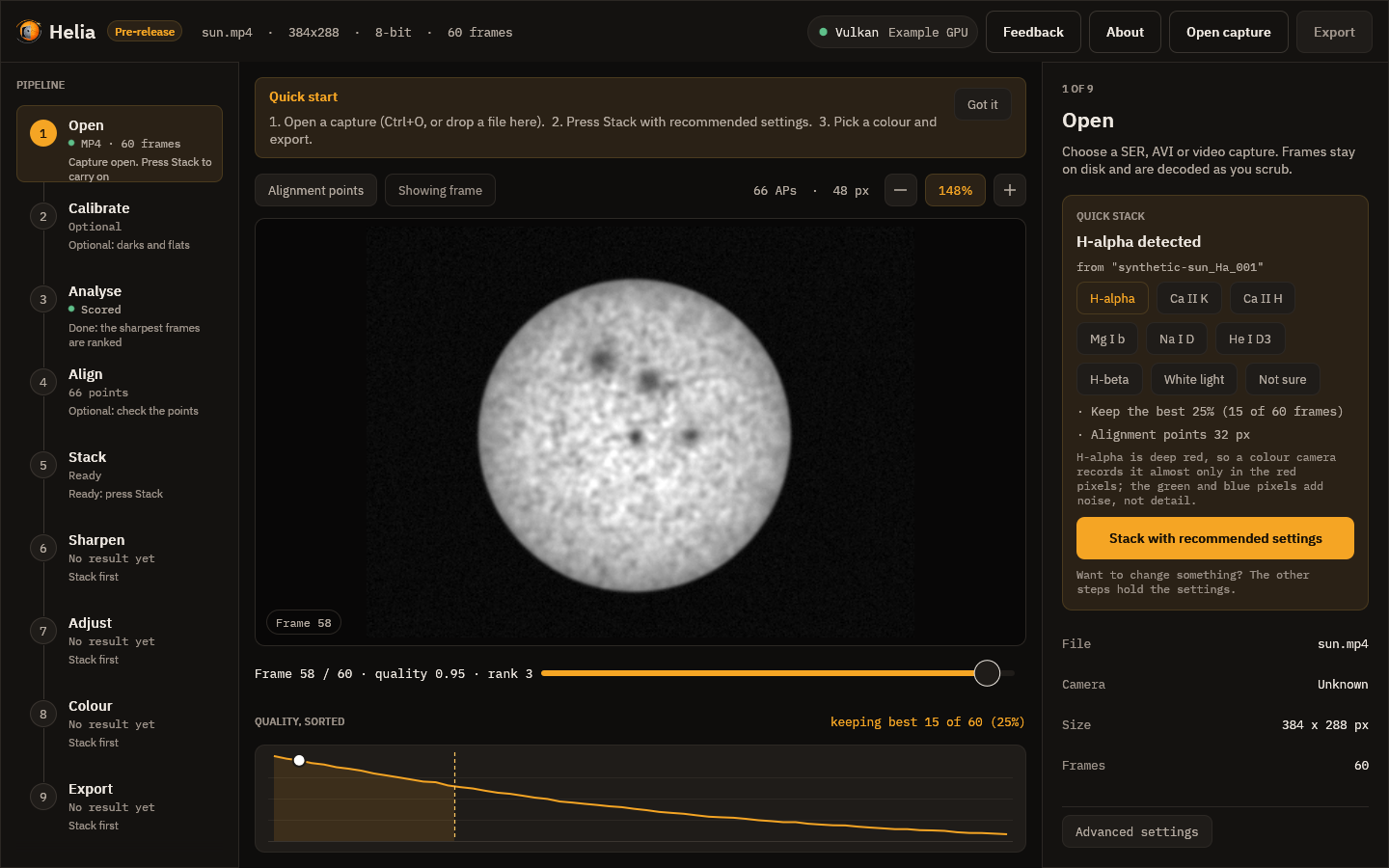
When the input is lossy video the Open inspector says so (here, "lossy 8-bit
4:2:0 video (h264): fine for quick results, SER/AVI raw captures keep more
detail"). See Capturing for Helia. If
ffmpeg is missing, an error strip above the viewer says how to install it.
Quick stack. Once a capture is open, the top of the inspector is a card that says which filter Helia found (from the file name, the folder, the SharpCap sidecar or the SER header; see Colourising) and lists the settings it will use: the colour channel (shown only for a raw colour camera), the share of frames to keep with the count, and the alignment point size. One primary button, Stack with recommended settings, applies those settings and runs the stack. Underneath, a row of filter buttons lets you correct the guess, and Not sure returns to plain defaults. The card keeps its advice short; the other steps hold the settings if you want to change them, and a change made there stays until you press the button again, which puts the recommended settings back.
First-run tips. The first time you use the app, a strip above the picture lists the three steps. Got it hides it for good; Helia remembers in its settings file (see Settings file).
The top bar then shows, in order: the file name, the camera model (taken from
the SharpCap CameraSettings.txt next to an AVI, when there is one), the frame
size, the bit depth with the Bayer pattern, and the number of frames.
The header, and what Helia will use
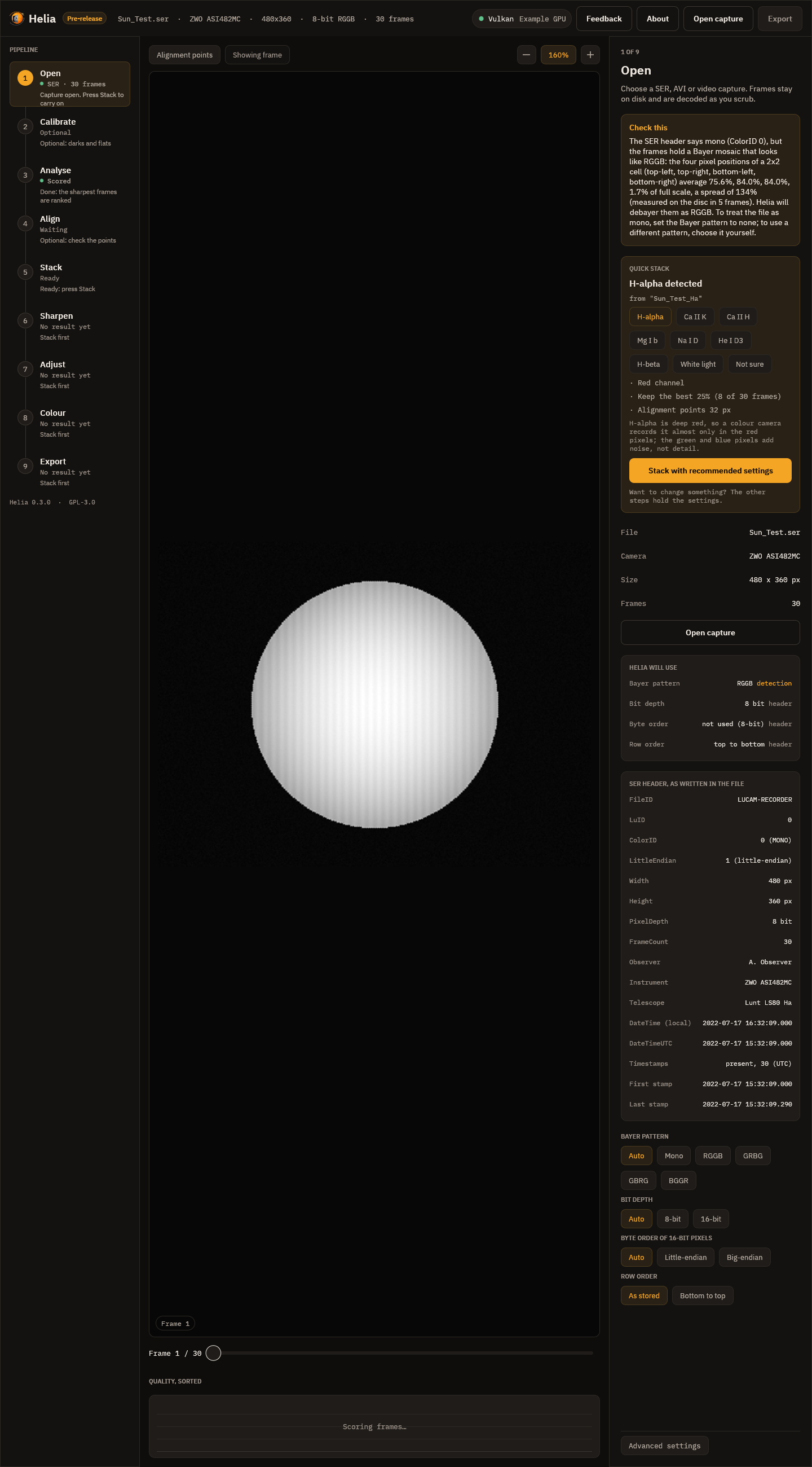
Under the file details the Open inspector shows two lists, so a header that is wrong cannot go unnoticed:
- Helia will use: the Bayer pattern, bit depth, byte order and row order the
capture is decoded with, each followed by where it came from:
header(the file's own),sidecar(SharpCap'sCameraSettings.txt),detection(measured from the pixels) oroverride(your choice, below). Anything that is not from the header is shown in the accent colour. - SER header, as written in the file: every field, decoded: FileID, LuID, ColorID with its meaning, the LittleEndian flag, width, height, pixel depth, frame count, observer, instrument, telescope, DateTime (local) and DateTimeUTC as dates (not set when the recorder left them at zero), and whether the per-frame timestamps are present with the first and the last. For an AVI it lists the codec, pixel format, row order and the sidecar's fields instead.
When the file disagrees with itself or with you, a Check this card above the
Quick stack card says so in words. The screenshot is the case it exists for: the
header says mono (ColorID 0), the pixels are an RGGB mosaic, and Helia debayers
as RGGB and tells you why. A brief message also appears at the bottom right when
the capture opens. helia info prints the same lists and notices (see
The command line).
Overrides. Below the lists, chips say what the file gets wrong. Each one reopens the capture, and the lists above update to show the override as the source:
- Bayer pattern: Auto trusts the header, but checks a SER file labelled mono for a hidden mosaic; Mono treats the frames as monochrome whatever the header or sidecar say; RGGB, GRBG, GBRG and BGGR force a pattern.
- Bit depth: Auto, 8-bit or 16-bit, instead of the header's.
- Byte order of 16-bit pixels: Auto, Little-endian or Big-endian, instead of the header flag.
- Row order: as stored, or bottom to top for a file stored upside down.
Bit depth, byte order and row order apply to SER files; their chips are greyed out for an AVI. The overrides belong to the file: opening a different capture starts again from Auto. They are written into the exported file (see What the files say).
2. Calibrate
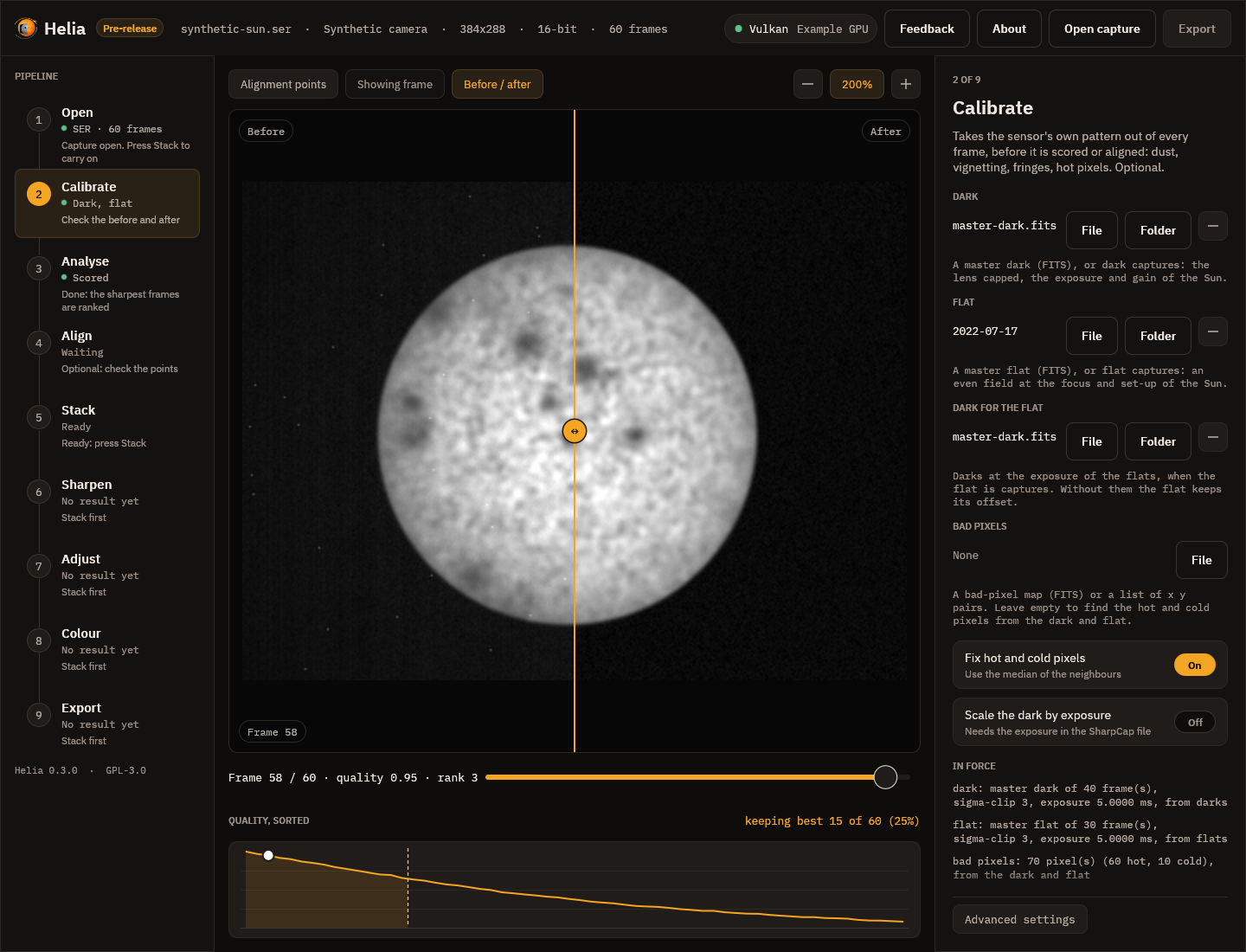
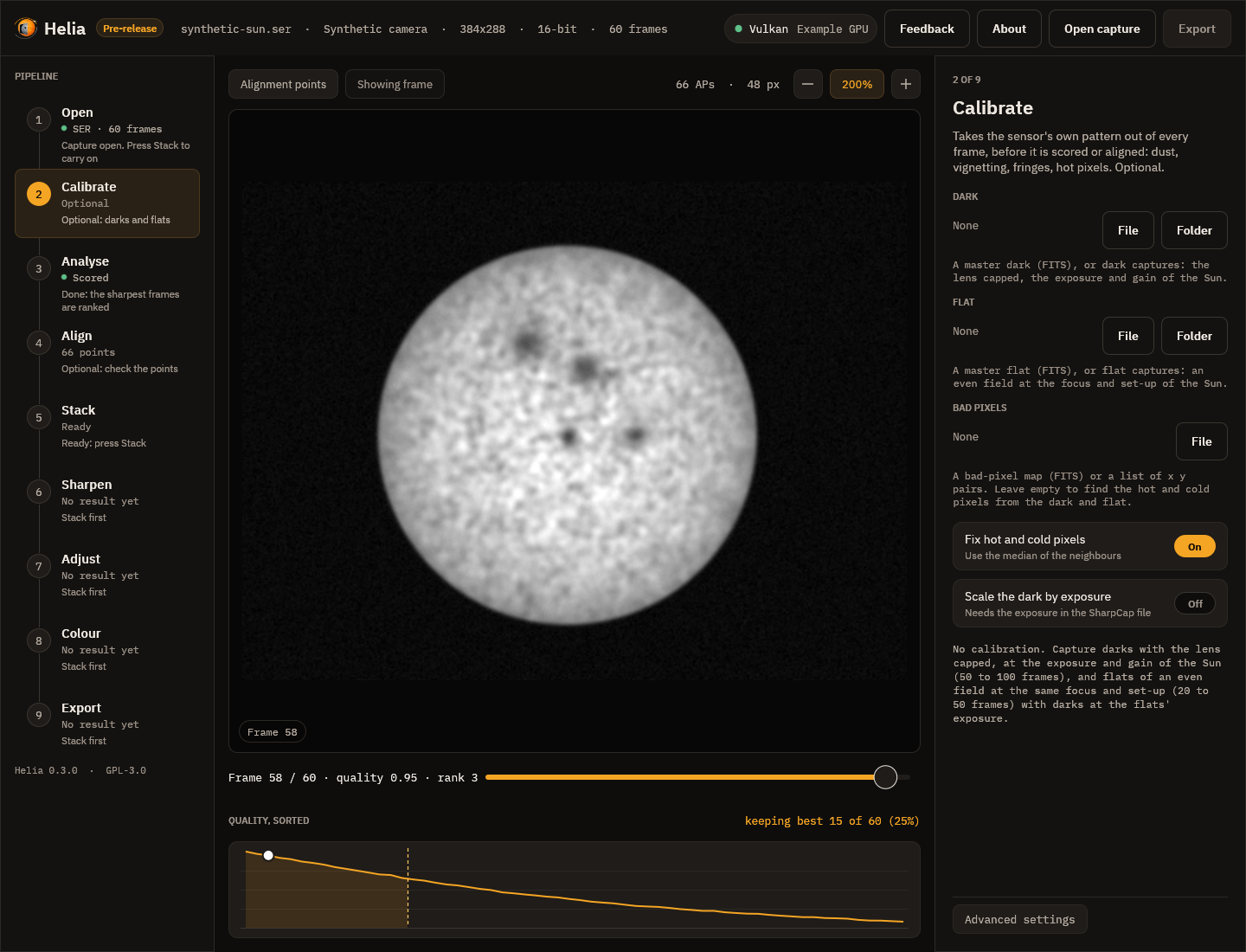
Optional. Calibration takes out what belongs to the sensor and the optics in front of it and not to the Sun: dust shadows, vignetting, the fringes of an etalon, a fixed pattern, hot and dead pixels. It is applied to every frame as it is read, before the frame is demosaiced, scored or aligned, so everything after it (the quality curve, the alignment points, the stack, the sharpening) sees the calibrated frames. See Calibration for what to capture and why.
The inspector has a place for each file:
- Dark is a master dark (a FITS file from
helia calibrate, or any FITS or TIFF) or dark captures to make one from. File picks a file; Folder picks a folder of captures (SER, AVI or FITS stills). - Flat is the same for the flat. When it is captures, a Dark for the flat appears: darks at the exposure of the flats. Without them the flat keeps its offset and corrects too much in the dim parts.
- Bad pixels is a map (FITS) or a text list of
x ypairs. Leave it empty and Helia finds the hot pixels of the dark and the cold ones of the flat itself. - Fix hot and cold pixels turns that correction off.
- Scale the dark by exposure is for darks taken at another exposure from the Sun; the Sun's exposure is read from the SharpCap file beside the capture.
While the masters are prepared the rail shows Preparing; then it names what is
in force, and the inspector lists each master (frames used, how they were
combined, a fingerprint of its pixels) and any warning: a flat with rings, a dark
that could not be scaled, a flat built without a dark. Before / after in the
toolbar splits the picture, the frame as recorded on the left and calibrated on
the right; drag the line. Save the masters writes master-dark.fits,
master-flat.fits and bad-pixels.fits to a folder, so the next session can use
the files instead of the captures.
Changing a file scores the capture again, and a stack made before the change is out of date: press Stack again. The masters are checked against the capture when it opens (same size, same mosaic) and a mismatch is explained in the inspector. Nothing here changes the capture file.
3. Analyse
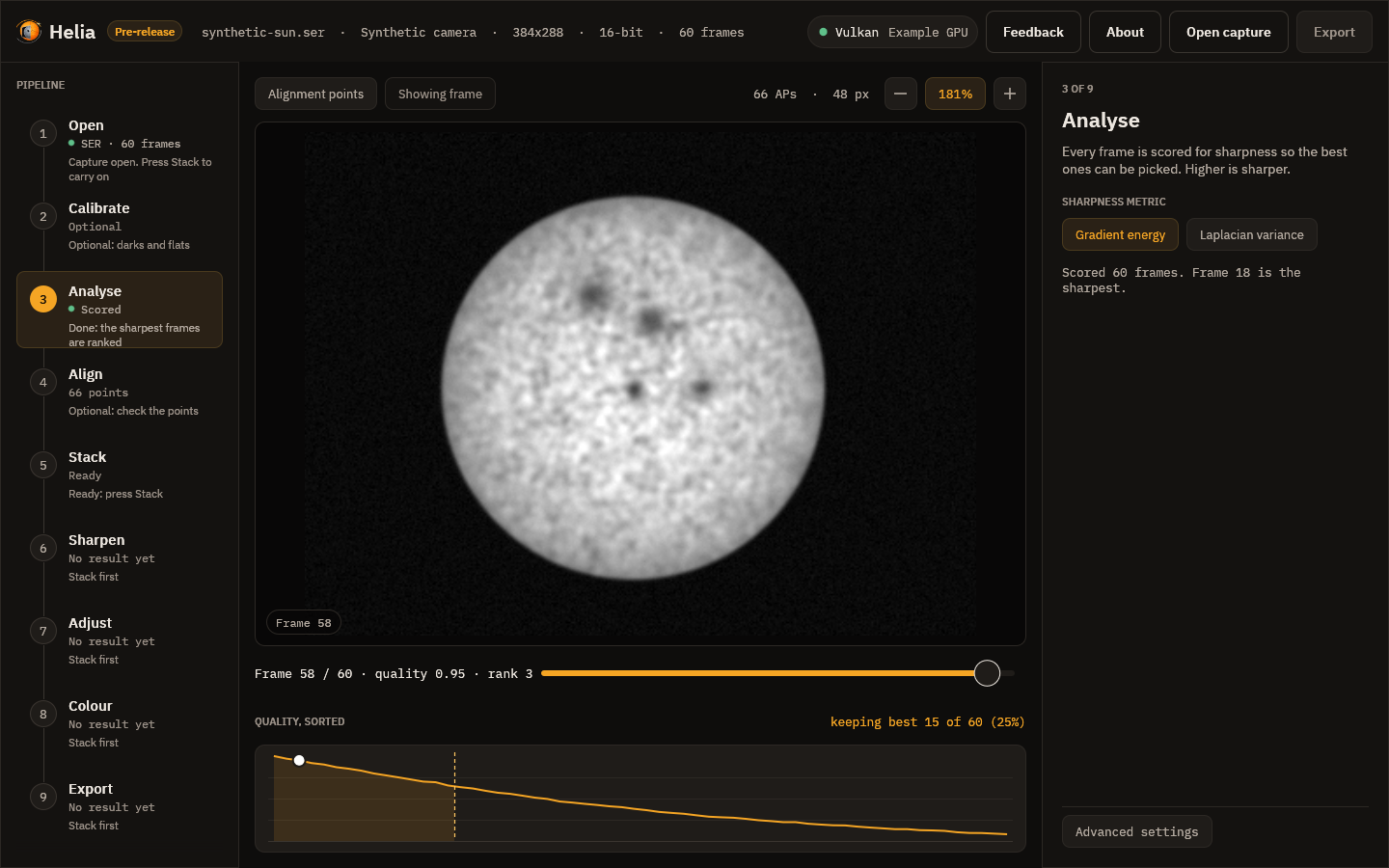
As soon as a capture opens, every frame is scored for sharpness in the background. The rail shows Scoring and then Scored. The inspector lets you choose the sharpness metric:
- Gradient energy, the default, is the mean squared gradient of the frame;
- Laplacian variance is the variance of the Laplacian.
Both ignore overall brightness and the sky pedestal, so a brighter frame does not look sharper. Changing the metric scores the capture again.
4. Align
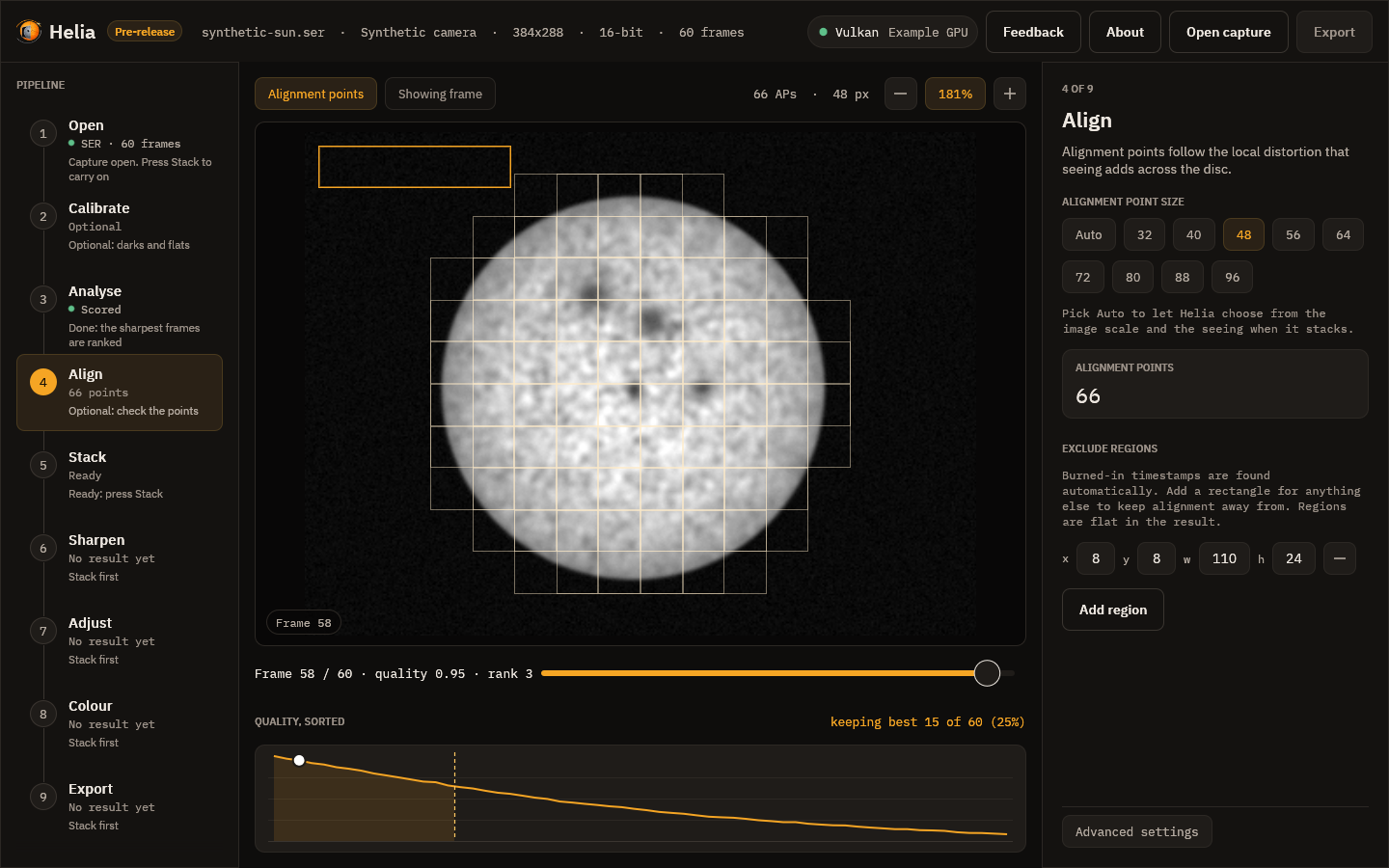
Seeing bends the image differently across the disc, so Helia aligns small windows called alignment points as well as the whole frame. The grid is drawn over the viewer as thin squares. The inspector offers the point size, from 32 to 96 pixels in steps of 8: small points follow finer detail but need more contrast to lock on. The size Helia recommends for your image is already selected.
The Auto chip beside the sizes lets Helia choose when it stacks: it fits the limb for the image scale, probes the seeing on a dozen frames, and picks the size, the spacing and how far to search. The note under the chips explains this before the stack and, afterwards, says what was chosen (for example alignment points 32 px every 16 px, search 4 px, 8.79 arcsec per pixel, local warp 0.35 px); the grid then shows the chosen size. Picking a size turns Auto off. See How stacking works.
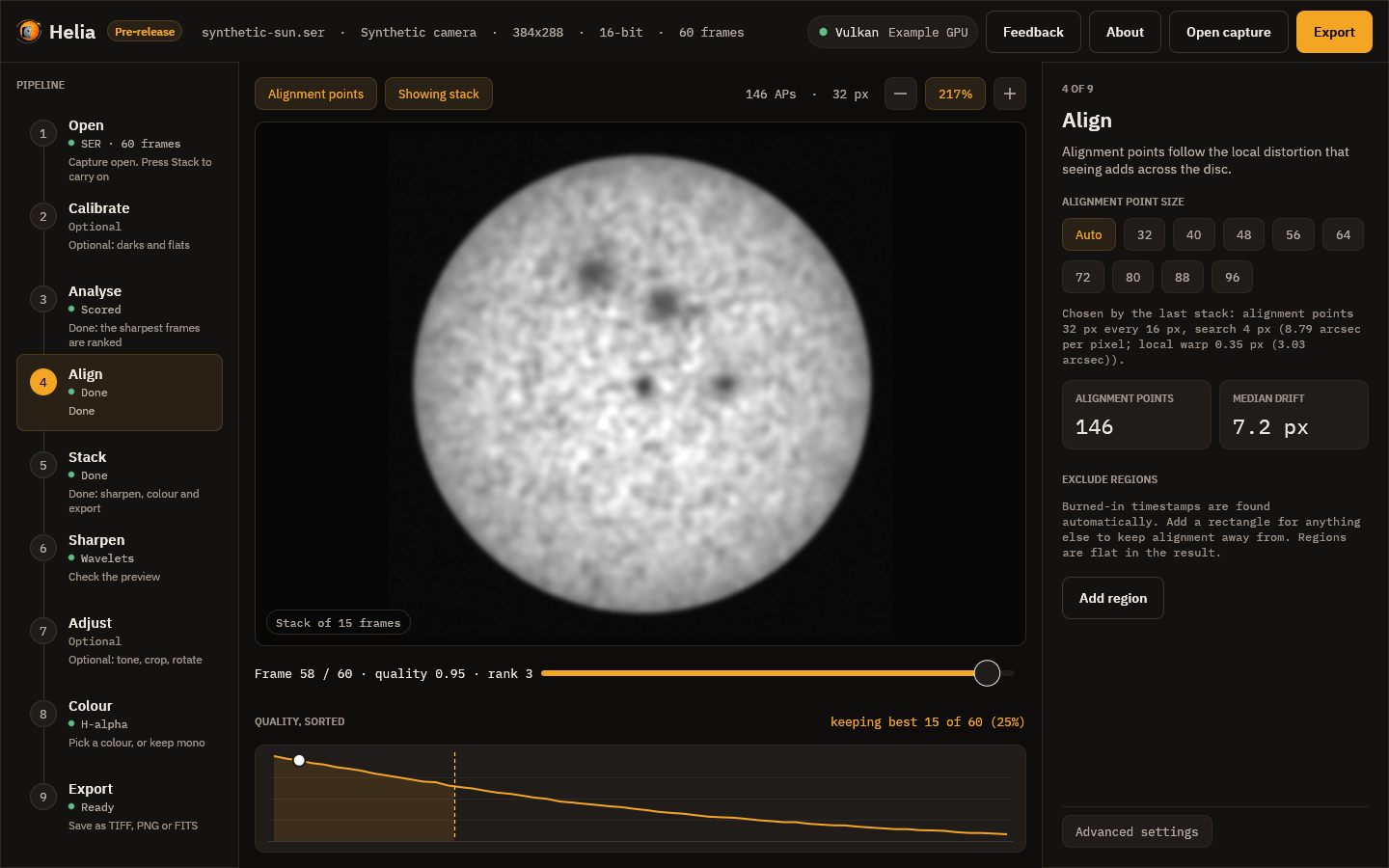
The card shows how many points are active, that is, bright and detailed enough to be measured. After a stack, a second card shows the median drift of the frames from the reference, in pixels.
Points are drawn only where the stack will use them: the centre of the window must be inside the fitted limb of the sun, and no window may touch burned-in text (which Helia finds by itself) or a rectangle you exclude.
Exclude regions lists rectangles that alignment and quality scoring must
stay off, for a logo or a stray label that the automatic text detection does
not cover. Add region creates one at the top-left corner; set its x, y,
width (w) and height (h) in pixels with the boxes, and use the minus button
to remove it. Each rectangle is outlined in amber on the frame. Excluded areas
are flat in the stacked result. Changing the list scores the capture again,
because the scores depend on it.
5. Stack
-
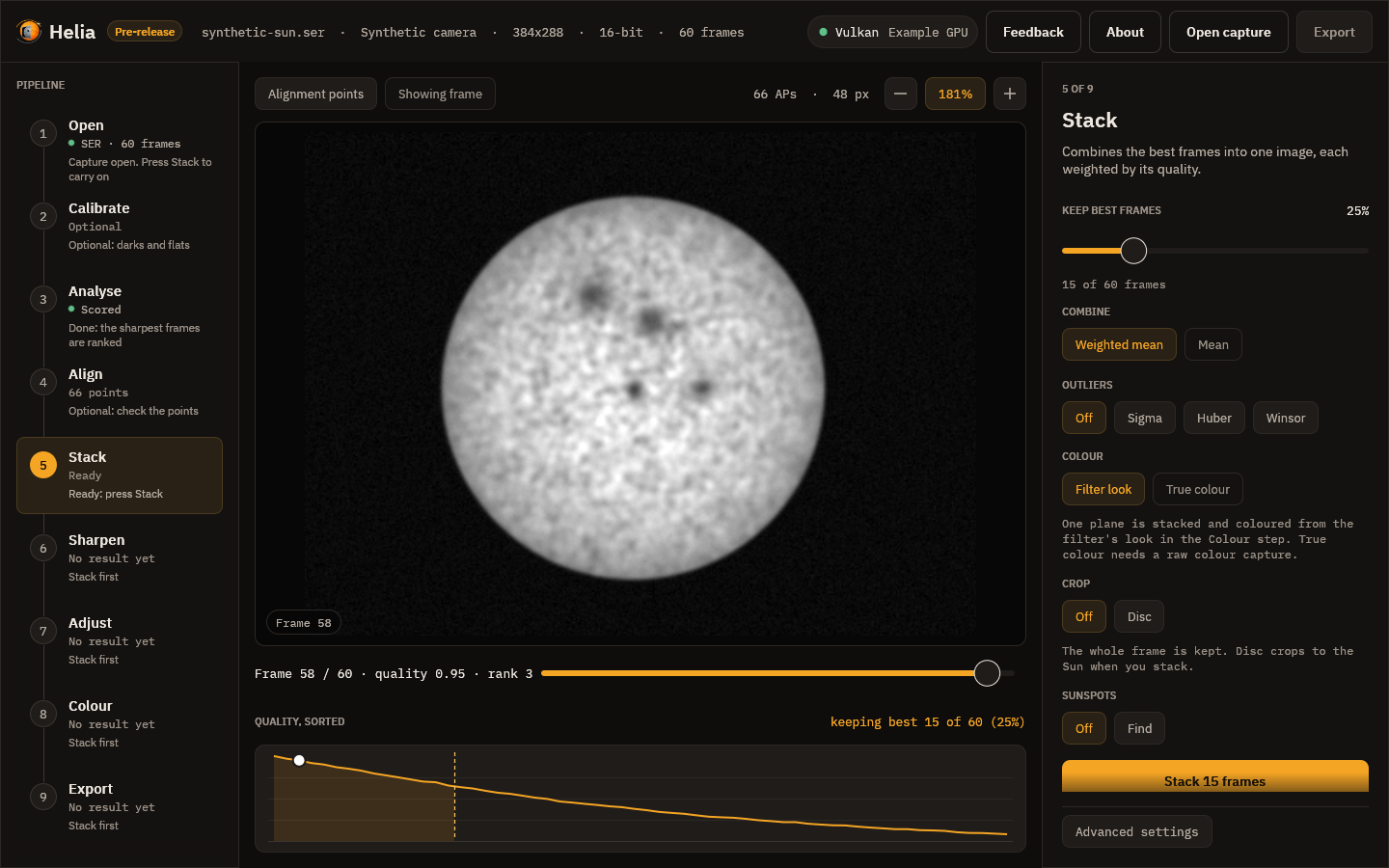
Keep best frames is the share of frames, ranked by quality, that go into the stack, from 5 to 100 per cent in steps of 5. The line underneath converts it to a frame count.
-
Combine is a weighted mean, which weights each frame by its quality. An unweighted mean is not available yet.
-
Outliers guards against samples that do not belong, such as a hot pixel, a satellite trail or a cloud dimming a few frames. Off is the plain weighted mean; Sigma drops samples beyond 2.5 standard deviations of the mean, Huber gives samples beyond 1.345 less weight the further they are, and Winsor clamps them to 2 standard deviations. It is off by default and makes the run slower, because the frames are read twice. See How stacking works for what each costs.
-
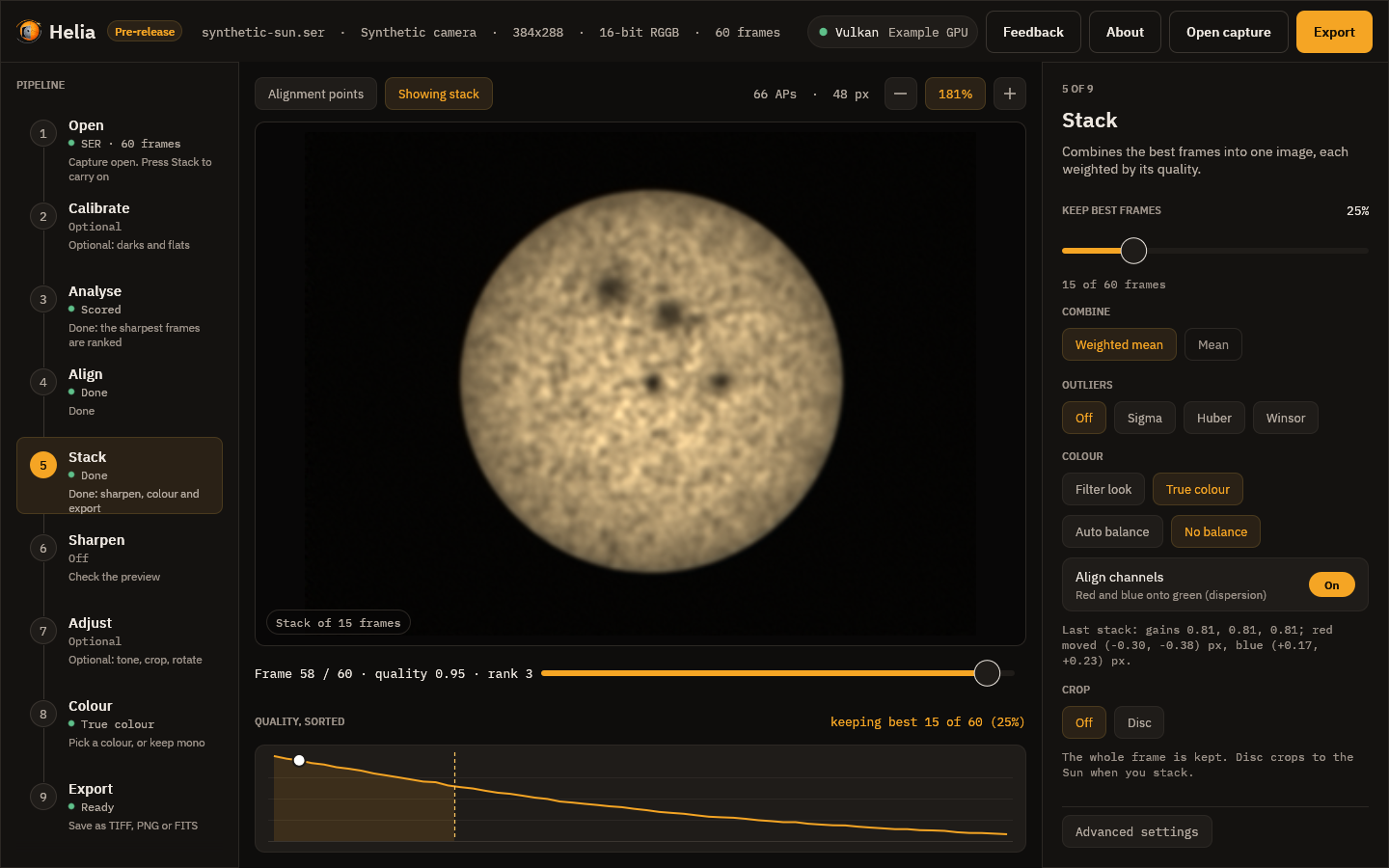
Colour chooses what is stacked. Filter look (the default) stacks one plane, coloured later from a filter's look in the Colour step. True colour, for white light with a raw colour camera, stacks red, green and blue on one alignment and gives a colour picture; Auto balance or No balance and Align channels (red and blue onto green) go with it. The chip is disabled for a capture that is not a Bayer mosaic. After a stack the note under it gives the gains and the channel shifts. See True colour.
-
Crop cuts the stack to the solar disc: Off keeps the whole frame, Disc crops to a square around the fitted limb with a margin you set with the slider (0 to 50 per cent of the radius, 10 to start). It applies to every export, FITS included. The note under it says what will happen and, after a stack, the size it was cropped to, or why it was not (no clear disc). See How stacking works.
-
Stack N frames starts the run.
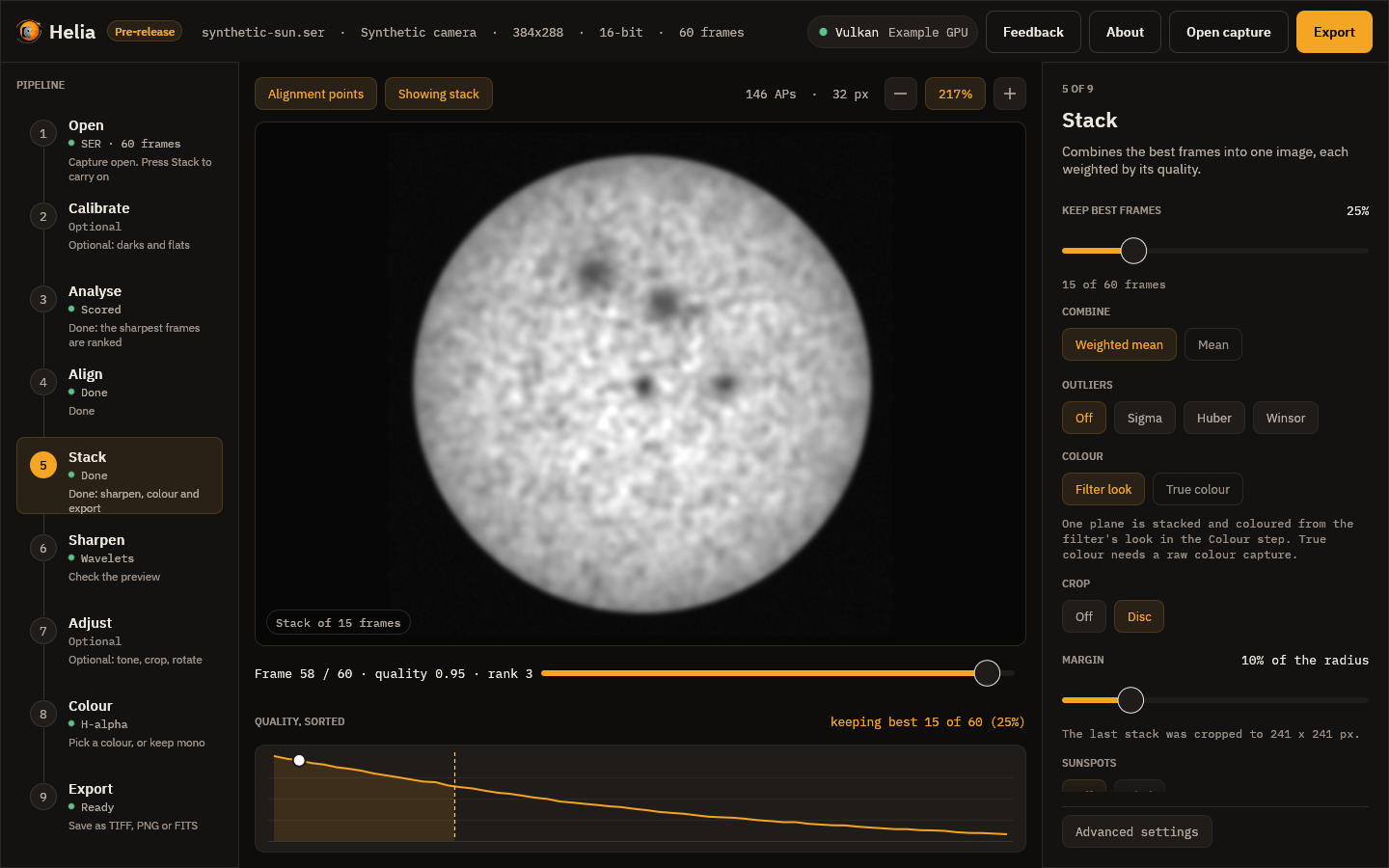
When it has finished, a line under the button says how whole frames were aligned
and how confident that was, for example Aligned by limb fit, confidence 0.90;
hover it for the reason. Helia picks the method itself: the solar limb when the
full disc is in view, phase correlation for a cropped region. The app has no
switch for it; use --align on the command line or align in an API job to
force one.
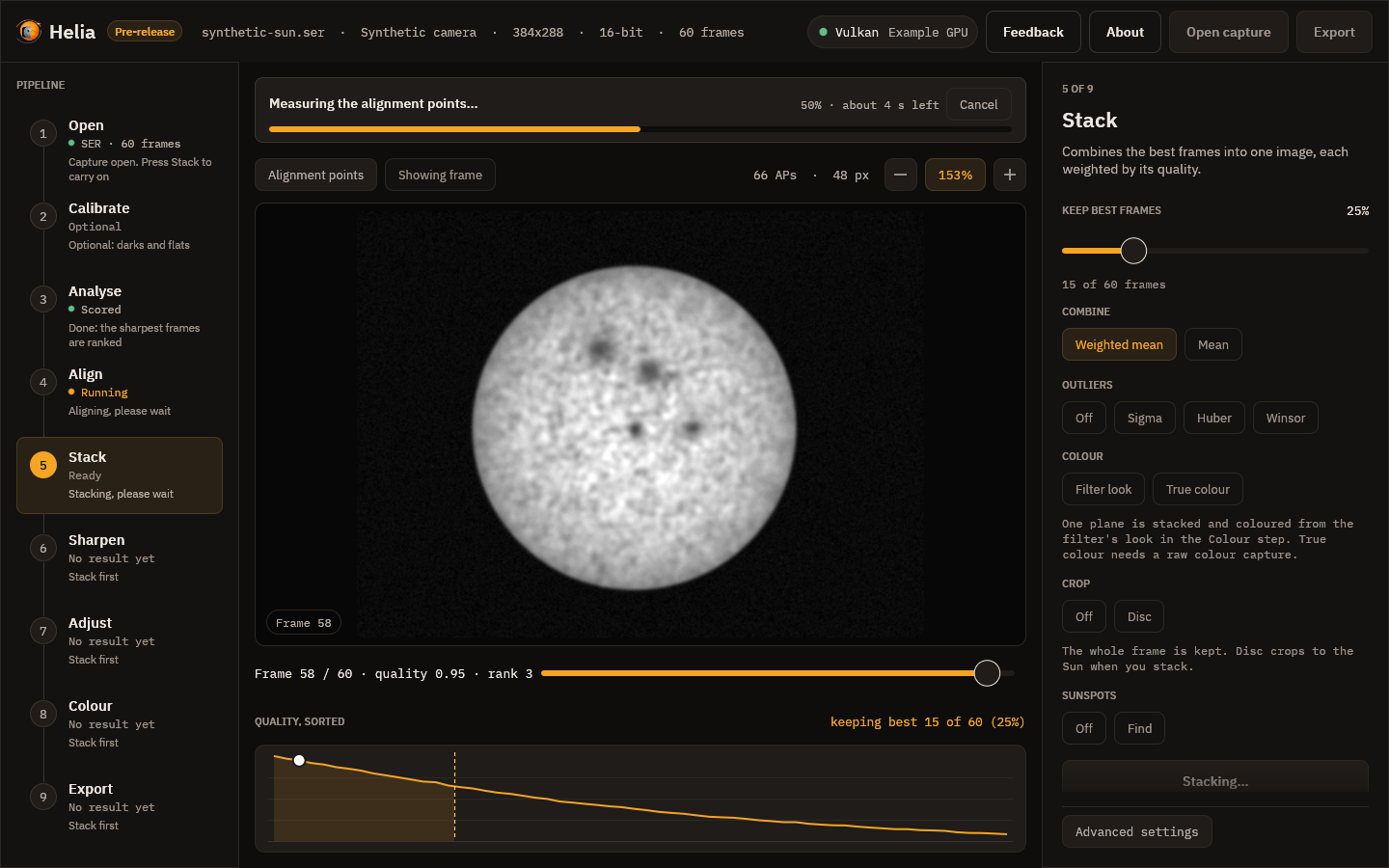
While it runs, a notice above the picture names the current stage and shows the percentage and the time left, and the thin bar in the inspector shows overall progress. Cancel, in either place, stops the run without losing the settings.
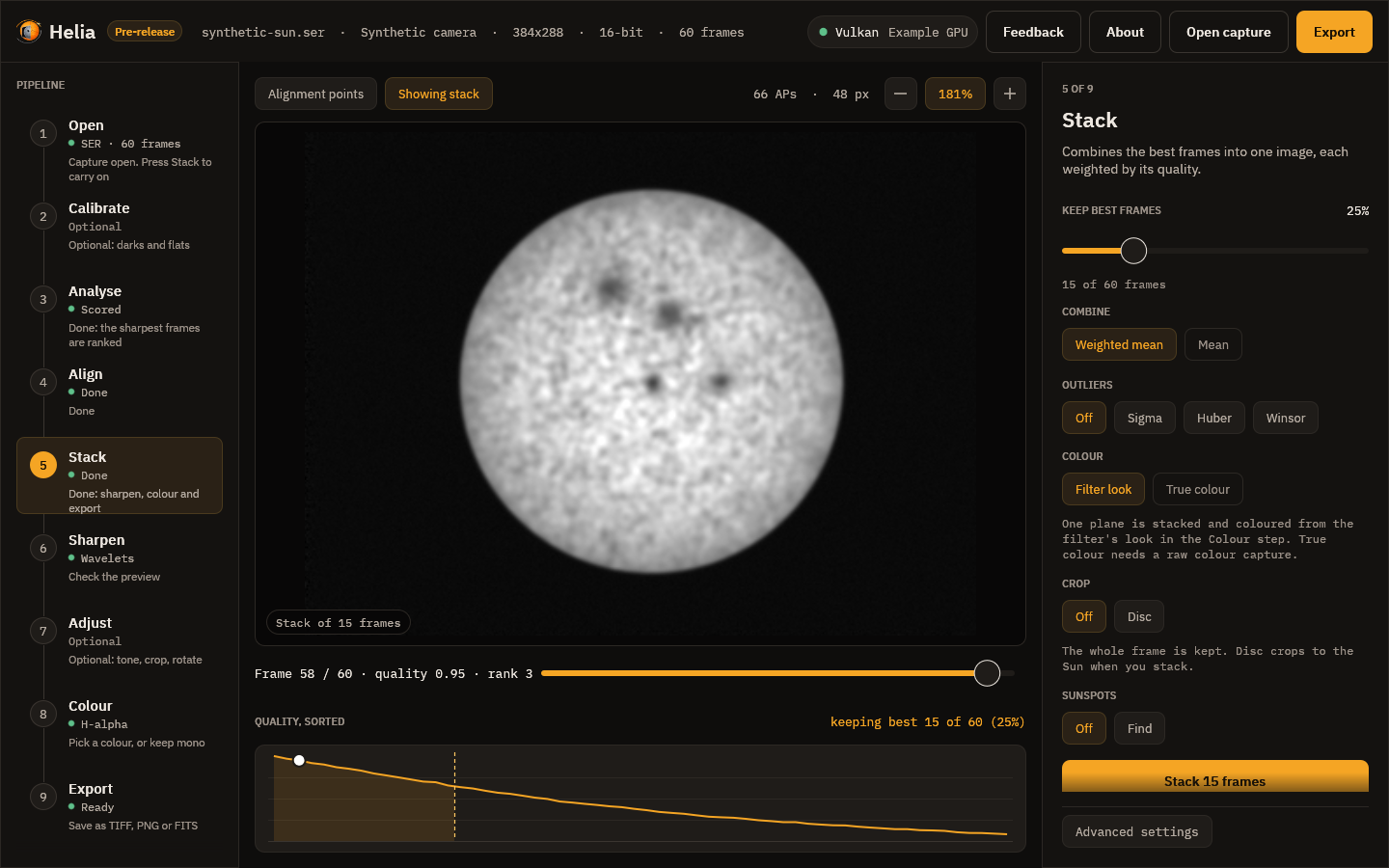
When it finishes, a message reports the frames used and the time taken, the viewer switches to the stacked image, the Export button lights up and Helia moves on to the Sharpen step.
6. Sharpen
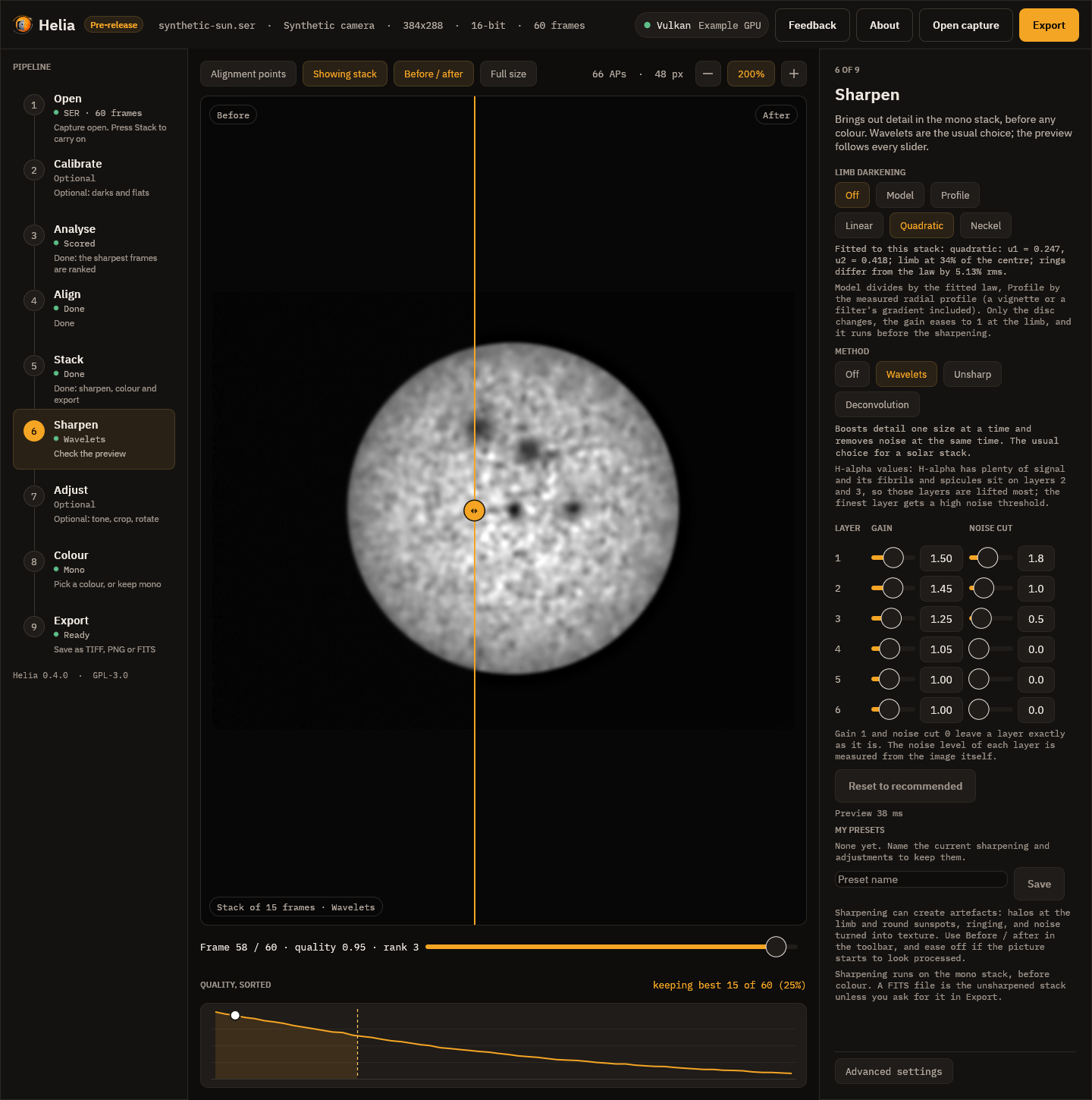
The stack is sharpened on the mono image, before any colour. The recommended wavelets for your filter are already on, so the picture you see here is sharpened; press Off to see the plain stack. The method chips choose between Wavelets, Unsharp and Deconvolution, and each shows its own controls: a gain and a noise cut for each wavelet layer, the radius, amount and threshold of the unsharp mask, or the blur, iterations, noise control and limb guard of the deconvolution. Every slider updates the picture as you drag it. Reset to recommended puts the filter's values back. My presets keeps and recalls whole settings under a name.
At the top of the step, Limb darkening divides the disc by its brightness profile before the sharpening runs, so the sharpening sees flat contrast from the centre to the limb. Model divides by the fitted law (the chips under it choose Linear, Quadratic or Neckel), Profile by the measured radial profile, and Off, the default, leaves the disc alone. The line under the chips is the fit made on your stack: the coefficients, how bright the limb is next to the centre and how far the rings stray from the law. Only the disc changes; the gain eases to 1 at the limb. See Limb darkening.
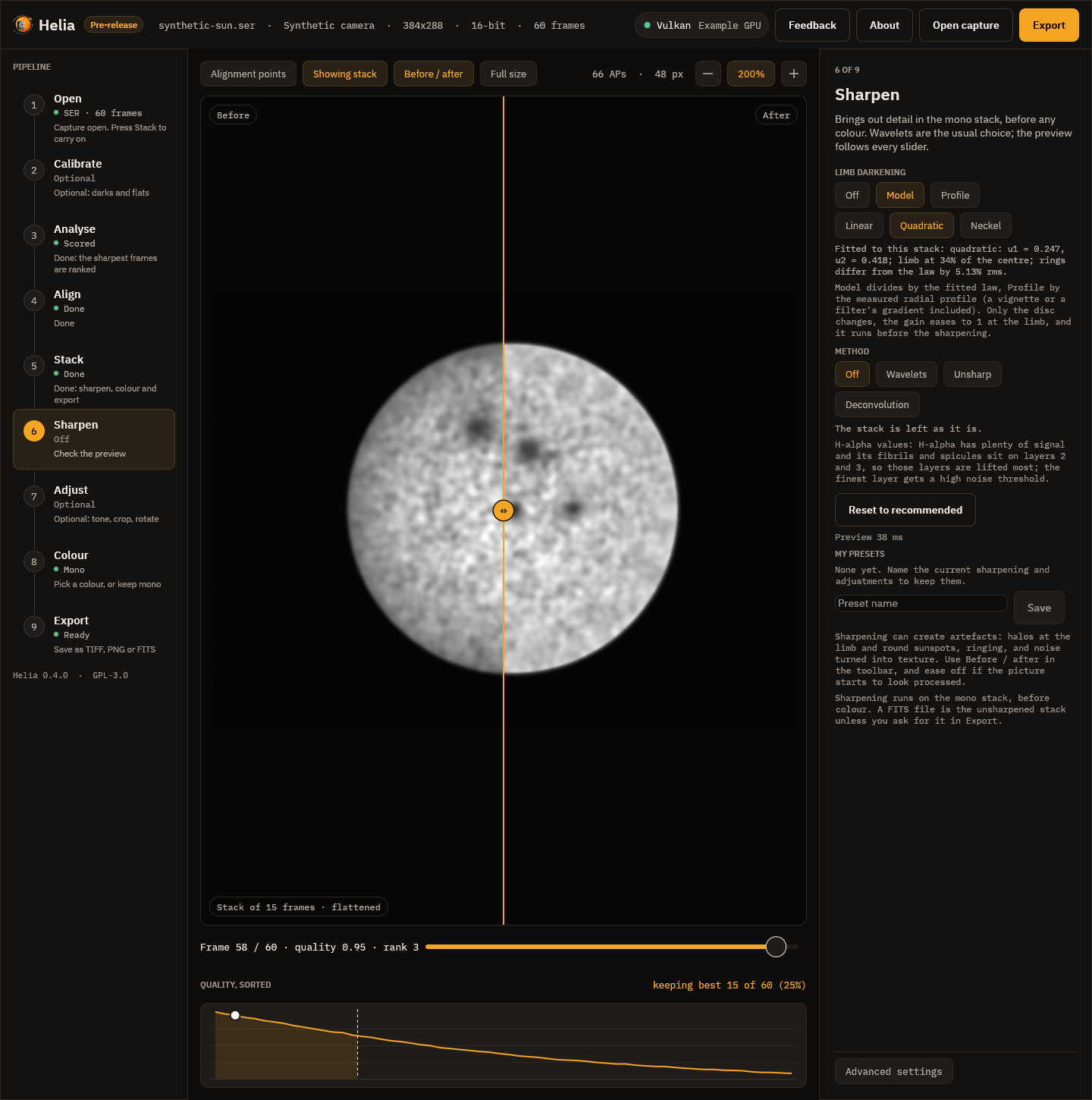
The toolbar gains two chips here and on the next step: Before / after splits the picture at a line you can drag, the stack as it was on the left and with your edits on the right; Full size renders the preview at full size instead of shrunk. The inspector says how long the last preview took.
Sharpening can create artefacts; the step says so, and so does Sharpening and adjustments, which explains each method, when to use it and what the recommended values are. The file notes what you did, and a FITS file is the unsharpened stack unless you ask otherwise in Export.
7. Adjust
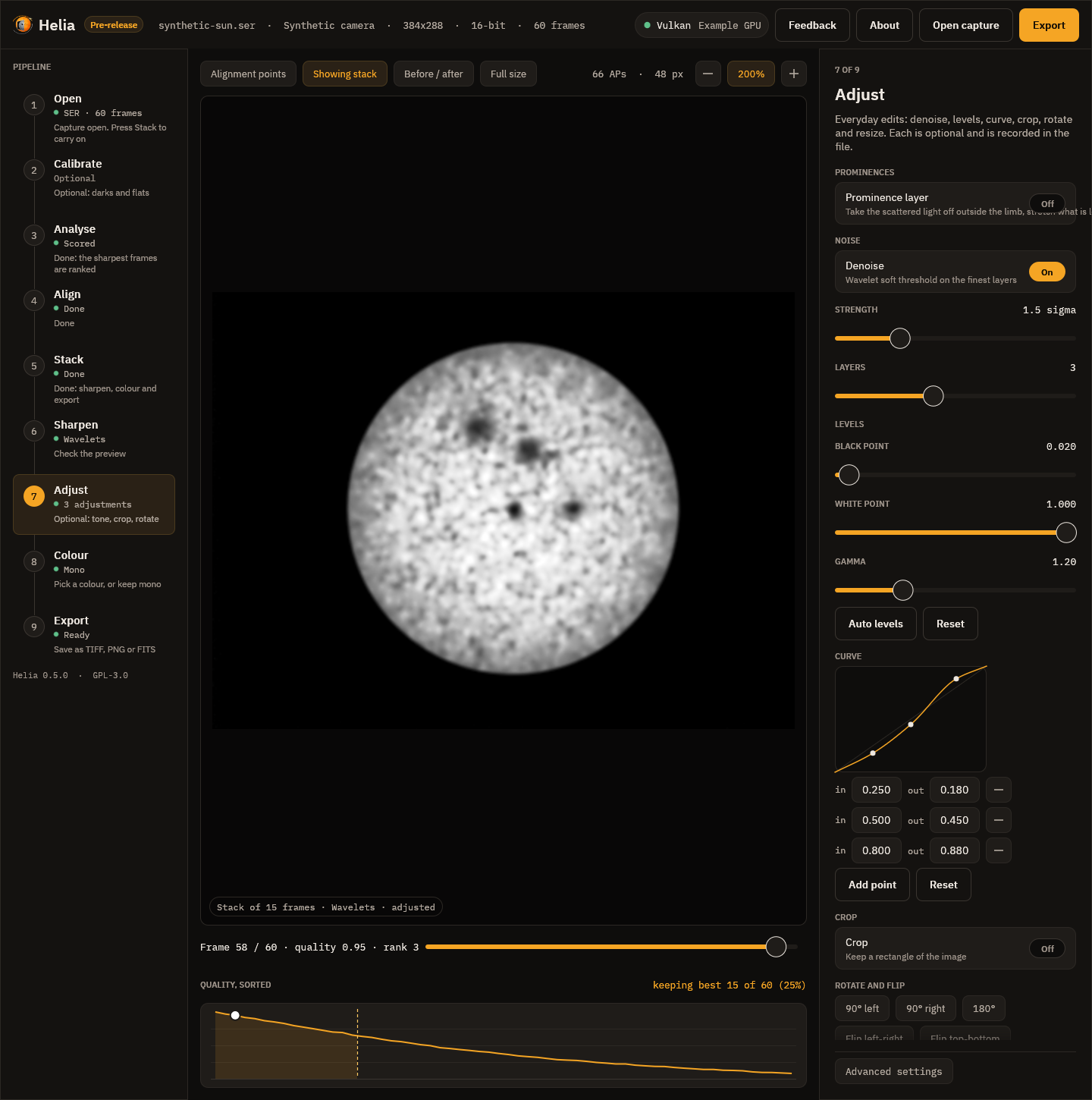
Everyday edits, each optional: Denoise, Levels (black point, white point, gamma and an Auto levels button), a tone Curve (click and drag its points, or type their input and output), Crop (a rectangle in pixels, or the whole image), Rotate and flip (quarter turns, a fine angle, mirrors) and Resize (10% to 400%), and, for lines with prominences, the Prominence layer (a stretched off-limb layer joined to the disc through a feathered edge; see Prominences and the disc together). The line under the controls gives the size of the picture that will be written, and Reset all adjustments switches everything off. The adjustments are applied after the sharpening, in a fixed order, and recorded in the file.
Editing the curve
The curve plot is a control you can drag, with the mouse or the keyboard:
- Click empty space in the plot to add a point there; keep the button down and drag to place it.
- Drag a point to move it. The pointer turns into a hand over a point.
- Double-click a point, or right-click it, to remove it. The end points at input 0 and 1 cannot be removed; they only move up and down.
- With the plot focused (click it, or Tab to it), [ and ] choose the previous or next point, the arrow keys nudge the chosen point by 0.005 (hold Shift for 0.05) and Delete removes it.
A point can never be dragged past its neighbours. It stays a little (0.005) to the right of the point on its left and to the left of the one on its right, and its output stays between theirs, so the curve never falls: a darker input is never made brighter than a lighter one. This is the same rule the program enforces for a curve typed into the boxes under the plot (a curve that breaks it is held back and the line under the plot says why), so a dragged curve is always valid. There are at most 16 points. Add point and Reset still work, and the boxes under the plot show and edit the exact numbers.
8. Colour
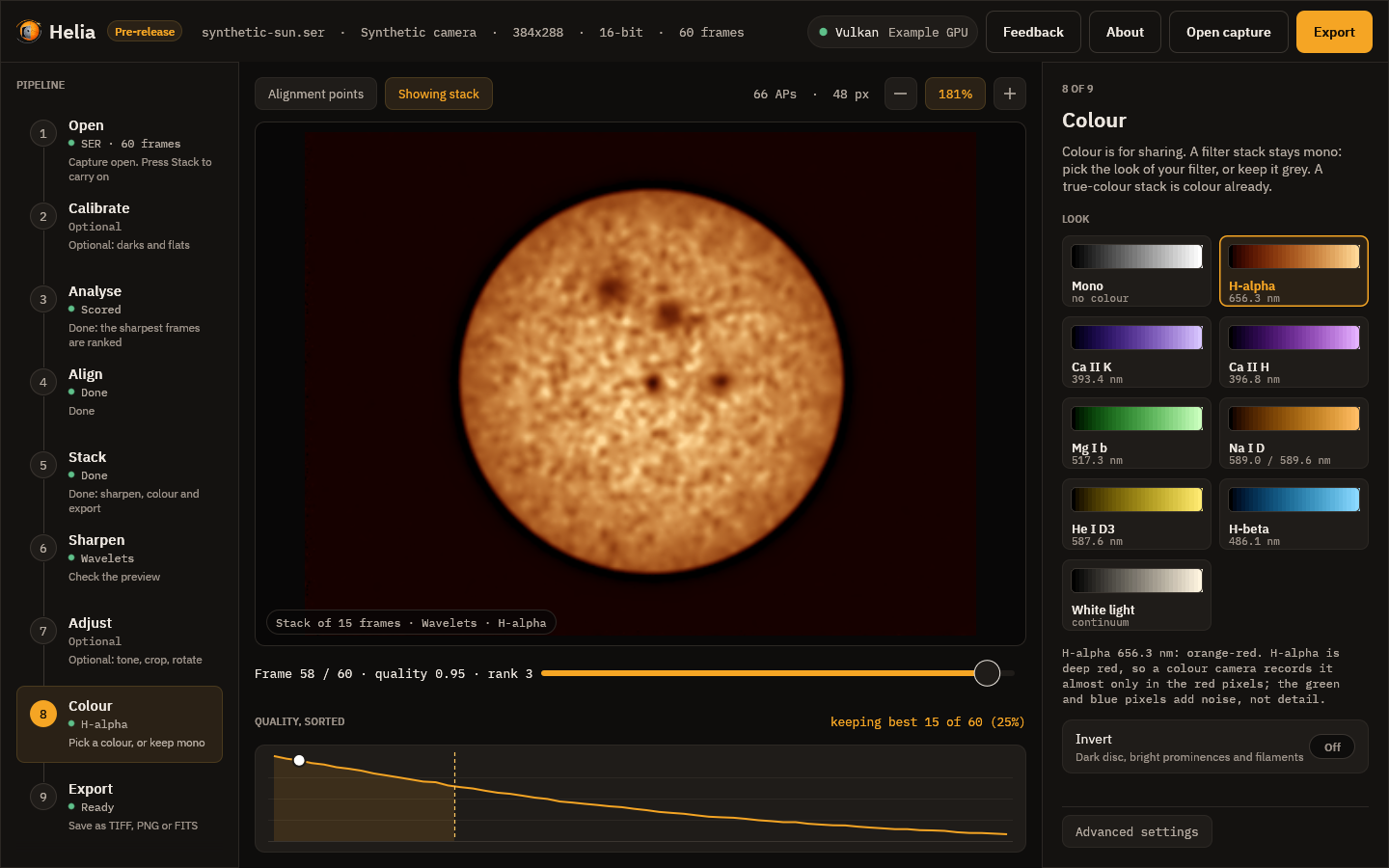
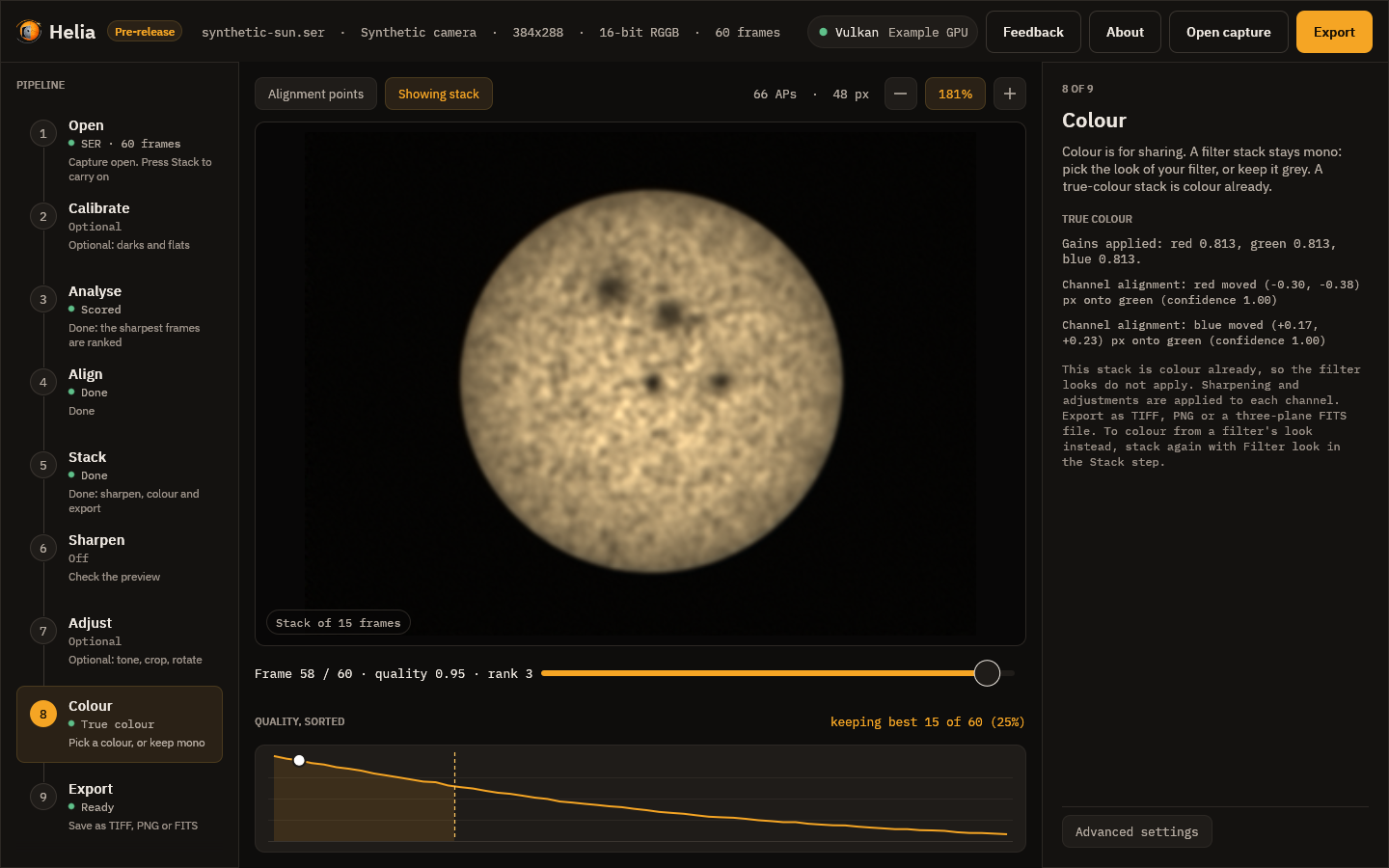
Colour is for sharing; a filter stack stays mono. (A true-colour stack is colour already: the step then shows its gains and channel shifts instead of the cards, because no look applies, and sharpening and adjustments run on each channel.)
Each card shows a look as a ramp from black to white, with its filter and wavelength: Mono, then H-alpha, Ca II K, Ca II H, Mg I b, Na I D, He I D3, H-beta and White light. Click one and the viewer shows the stack in those colours at once. Under the cards, a line says why the look is what it is.
- Invert makes a negative before colouring, which shows filaments and prominences well.
- Strength mixes between grey and the full colour.
- Continue to export goes on.
The app remembers the look you chose for each filter. The look you leave here is what Export writes, and the viewer, on this step and the next, shows exactly that. Colourising explains the presets and the maths.
9. Export
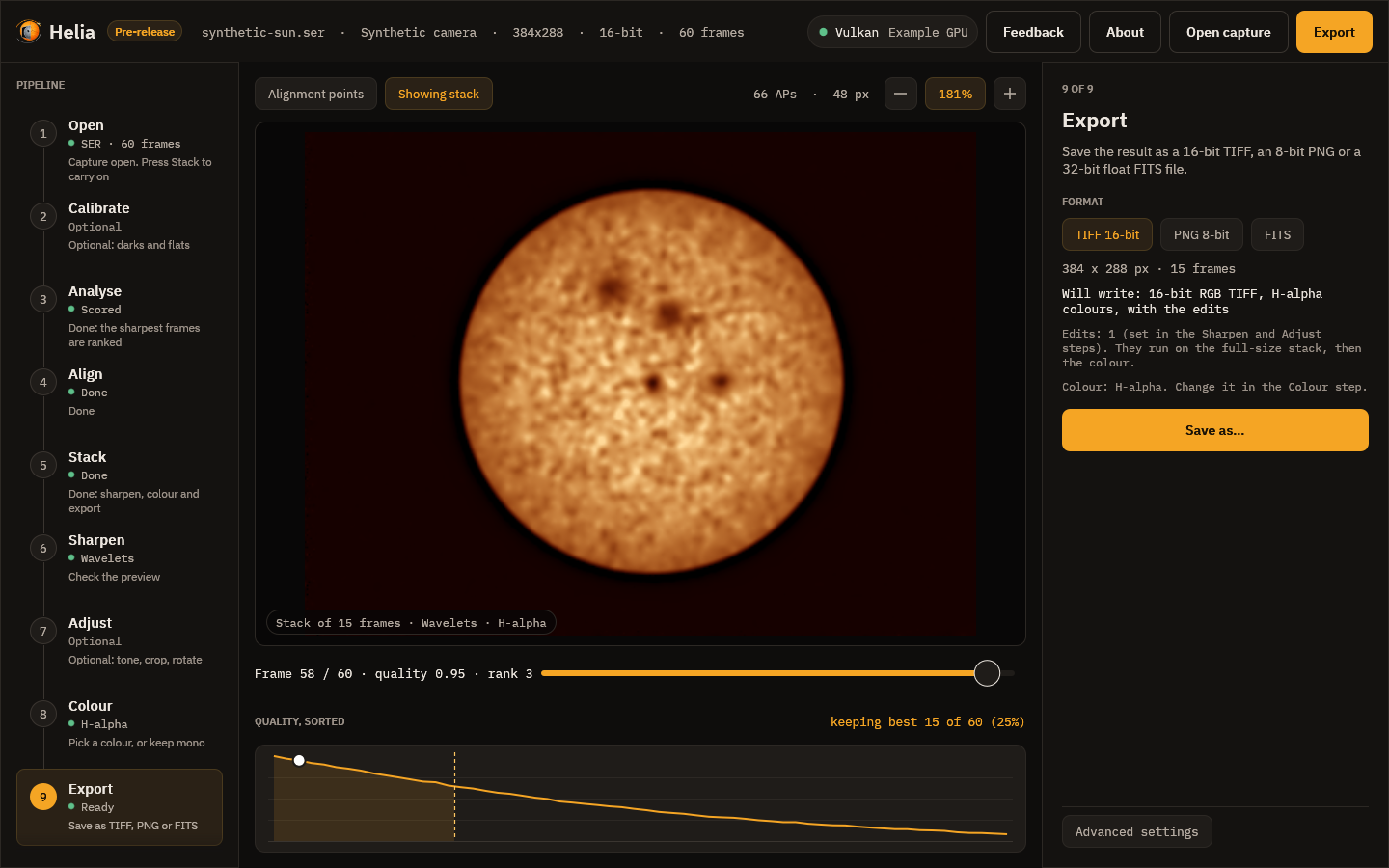
Choose TIFF 16-bit, PNG 8-bit or FITS (32-bit float) and press Save as, or press Ctrl+E from anywhere. The step says what will be written, for example 16-bit RGB TIFF, H-alpha colours. TIFF and PNG carry the sharpening, the adjustments and the colour look; FITS is always mono, and is the unsharpened stack unless you turn on Edit the FITS too (the step says which it will be). Every file notes the edits and the look used (see What the files say and Sharpening and adjustments). The edits run on the full-size stack, then the colour. The file is written in the background, with an Applying the edits and writing the file notice, and a message confirms where it went.
The viewer
The toolbar above the image has toggle chips:
- Alignment points shows or hides the grid;
- Showing frame or Showing stack switches between the current capture frame and the stacked result (Space does the same). On the Sharpen, Adjust, Colour and Export steps the stack is shown as it will be written, sharpened, adjusted and coloured, and the pill at the bottom of the picture names what has been done;
- Before / after and Full size, on the Sharpen and Adjust steps (see above).
On the right of the toolbar are the number of points and their size, and the zoom controls: minus, the zoom readout (press it to fit the image to the window) and plus. You can also scroll to zoom around the pointer, drag to pan and double-click to fit.
Under the viewer, the frame scrubber reads, for example, Frame 42 / 100 · quality 0.71 · rank 18. Quality runs from 0 for the worst frame to 1 for the
best, on the same scale as the curve below, so it falls steadily as the rank
number rises, and rank 1 is the sharpest. Drag the slider or use the arrow keys to move through the
capture.
Below that, Quality, sorted plots every frame's score from best to worst. The dashed line marks where the frames you keep end, the shaded area is the kept set, and the white dot is the frame on screen. Hover the curve to read a rank and click it to jump to that frame.
Advanced settings
The foot of the inspector has an Advanced settings button. It is closed by default, so the everyday path is not crowded; press it to show three groups of settings that apply to every step:
- Backend: Auto uses the best adapter wgpu finds and the CPU otherwise; CPU and GPU force the choice (see GPU acceleration). The chip in the top bar shows the graphics API and the adapter that is in use, or CPU. A long adapter name is shortened with an ellipsis; hover the chip for the whole name.
- Debayer: the demosaic method (Bilinear or MHC, Malvar, He and Cutler). This matters only for colour sensor captures.
- Channel: the channel that is analysed and stacked (R, G, B or Lum). The recommended one for your filter is selected when a colour capture opens.
Settings file
Helia keeps a small text file of choices it should not ask twice: whether the
first-run tips were dismissed, the colour look last chosen for each filter, the
backend, export format, outlier rejection and full-size preview you last chose, the
folders you last opened a capture from and exported to (the file dialogs start
there), the last eight captures you opened (the Recent menu), the size of the window
when you last closed it (not saved while it is maximised or full screen), and (only if you set it)
the address of the feedback service. The keep percentage, the alignment point size, Auto, the
crop and true colour are not remembered: the first two come from each capture's recommendation,
the others start off.
(Saved sharpening presets are separate files in their own folder; see
Sharpening and adjustments.)
It is $HELIA_GUI_CONFIG if that is set, otherwise %APPDATA%\helia\gui.conf
on Windows or $XDG_CONFIG_HOME/helia/gui.conf (~/.config/helia/gui.conf) on
Linux and macOS. The format is one key=value per line, for example:
tips_dismissed=true
colour.ha=ha,false,1.00
colour.cak=cak,true,0.80
backend=auto
export_format=tiff
robust=off
full_preview=false
last_open_dir=/home/me/captures
last_export_dir=/home/me/stacks
window=1500x920
recent=/home/me/captures/sun.ser
recent=/home/me/captures/limb.ser
feedback_url=https://feedback.example.org
recent lines are newest first. Bug reports leave the recent list out, like the folders. robust is off, sigma, huber or winsor; a file from before the robust modes may still hold
sigma_clip=true, which is read as sigma. Delete the file to start afresh. A missing or damaged file is not an error (an
unknown value is ignored and the default stays), and the app writes nothing until
you change something it remembers.
Log file and bug report
Helia (the app, the command line and helia serve) writes a small log so a
problem can be looked into afterwards. It is helia.log in
%LOCALAPPDATA%\helia\logs on Windows, or in $XDG_STATE_HOME/helia
(~/.local/state/helia) on Linux and macOS; $HELIA_LOG_DIR overrides the
folder. Each line is a UTC time, a level, the program and a message, for example
2026-10-19T12:00:00Z INFO helia-gui: opened sun.ser, 1920x1080, 8-bit RGGB, 631 frames. It records what was started, which capture file was opened (its name,
never its folder), what was exported and any error. It never holds image data, and
a path in an error message is cut down to the file name. At 512 KiB the log
rotates into helia.log.1 and helia.log.2 and the oldest is dropped, so it
stays under about 1.5 MiB. Nothing is sent anywhere.
Save bug report on the About page writes a .zip of four text files for you
to attach to an issue: summary.txt (the version block, operating system and GPU
adapter), capture.txt (the open capture's header in one line), settings.txt
(the settings file above, without folder names) and log-tail.txt (the last 300
log lines). It holds no images and no screenshot; open it and read it before you
send it. It is separate from Send feedback, which sends a
screenshot and a description to the relay when you press Send.
Small windows
Below about 1100 pixels wide the rail and the inspector collapse so the viewer keeps its space. Two buttons appear in the top bar to show either one; only one is open at a time.
About
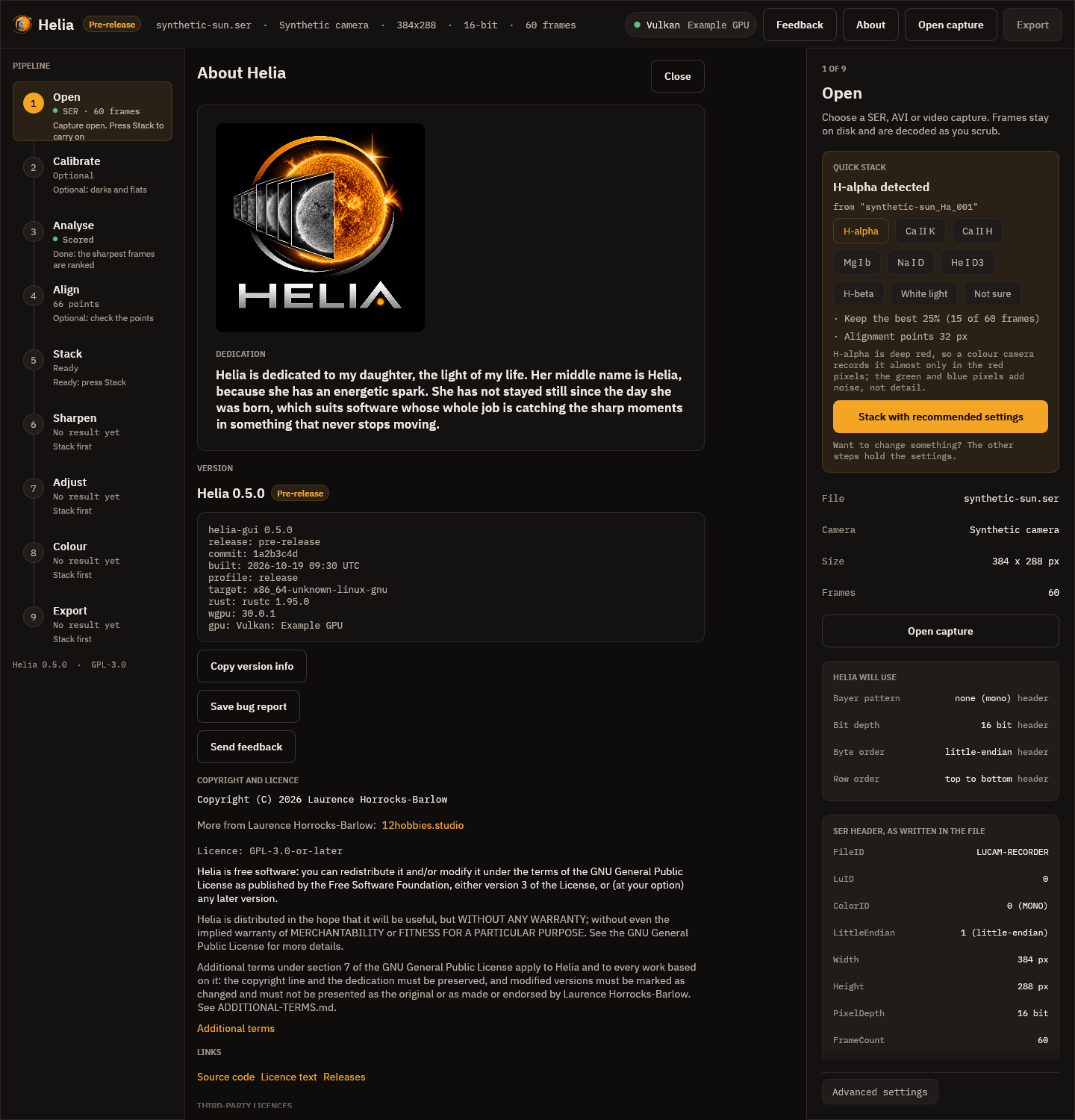
The sun in the top bar, the About button next to it, or F1 opens the About
page, which replaces the viewer until you press Esc or Close. It leads with the
dedication, then gives the version and how this copy was built: git commit
(+dirty if the tree had uncommitted changes), build time in UTC, build profile,
target, Rust and wgpu versions, and the GPU adapter in use or CPU. Copy version
info puts those lines on the clipboard for a bug report. Below are the
copyright, the GPL notice with its no-warranty paragraph, links to the source,
the licence text and the releases page, and the third-party licences (from
THIRD-PARTY-LICENSES.txt beside the program in release archives). The page
makes no network connections; a link opens in your browser only when you click it.
While Helia is below version 1.0.0 the page, the top bar (a Pre-release badge
beside the name) and the window title (Helia 0.3.0 (pre-release)) all say that
this is a pre-release, and the version block has a release: pre-release line.
Send feedback on this page opens the feedback page, below.
Feedback
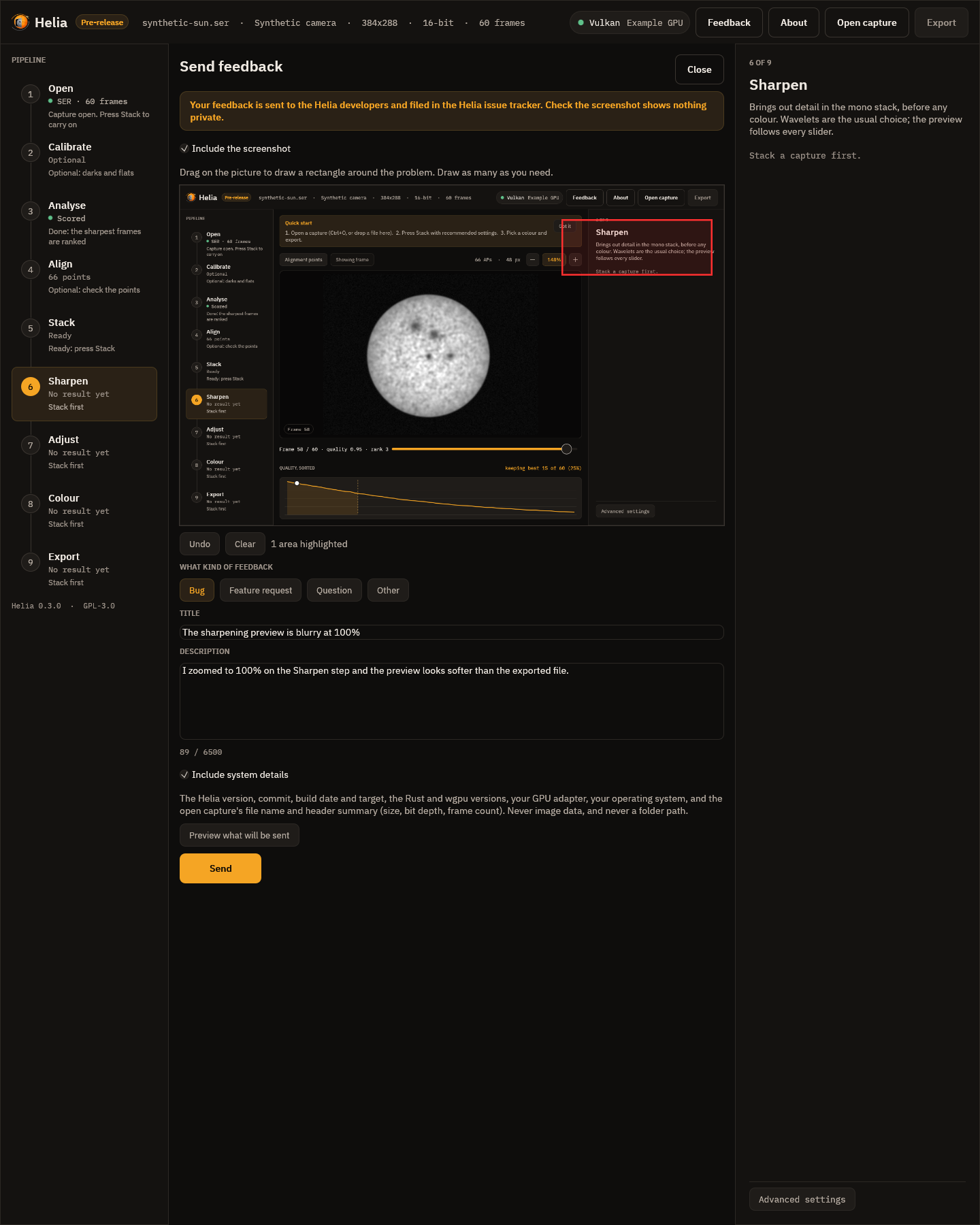
The Feedback button in the top bar (or Ctrl+Shift+F), at any step, takes a picture of the Helia window and opens a page where you draw rectangles round the problem, say whether it is a bug, a feature request, a question or something else, and send it as an issue on the project's forge. Nothing is sent until you press Send, and Helia has no telemetry. Sending feedback has the whole walk-through, what is and is not included, and what happens when the feedback service cannot be reached.
Keyboard shortcuts
| Keys | Action |
|---|---|
| Ctrl+O | Open a capture |
| Ctrl+E | Export the result |
| Left, Right | Previous or next frame |
| Shift+Left, Shift+Right | Ten frames back or forward |
| Home, End | First or last frame |
| Space | Switch between the frame and the stacked result |
| F1 | Open or close the About page (Esc also closes it) |
| Ctrl+Shift+F | Send feedback (Esc closes the page) |
| Tab, Shift+Tab | Move between controls |
The arrow keys and Space act on the viewer when no control has keyboard focus. Every control has an accessible name and a tooltip, and the window works with screen readers through AccessKit.
Testing the screenshots
The images above are checked by cargo test -p helia-gui (see
Building and testing). The tests render the
window at 1440 by 900 pixels (the Open header view is taller, at 1440 by 2600, to
show the whole inspector) on a software GPU, from a synthetic capture with
injected state, and fail if the result differs from the committed image. They
run only when HELIA_GPU_TESTS=software is set, and otherwise print a note and
pass. To regenerate the images after an intended change:
UPDATE_SNAPSHOTS=1 HELIA_GPU_TESTS=software cargo test -p helia-gui snapshots