Sending feedback
Helia is a pre-release, and the quickest way to make it better is to tell us what is wrong or missing. There is a Feedback button in the top bar, at every step, and a matching command for people without a display.

Privacy first
- Nothing is sent until you press Send. Opening the page, drawing on the screenshot and typing send nothing, and nothing you type is saved to disk.
- Helia has no telemetry. It never sends usage, crash or error reports of its
own accord. The only network request Helia ever makes about feedback is the one
you start with Send (or with
helia feedback). - It goes to the Helia developers. Your feedback is sent to them and filed in the Helia issue tracker, which may be visible to more people than the developers, now or later. Look at the screenshot before you send it: it is a picture of the Helia window, and the window can show the file name of your capture, your GPU and anything else on the screen inside it. Untick Include the screenshot if in doubt.
- You see exactly what will be sent. Preview what will be sent shows the report as text and the screenshot with your rectangles on it.
- System details are optional and limited. If you tick Include system details, the report carries the Helia version, commit, build date and target, the Rust and wgpu versions, your GPU adapter, your operating system, and the open capture's file name and header summary (size, bit depth, frame count). It never carries image data, a folder path, your name, a host name or an address.
In the app
Press Feedback in the top bar, or Ctrl+Shift+F. (The About page has a Send feedback button too. F1 still opens the About page.) Helia takes a picture of its own window and then shows the feedback page in place of the viewer.
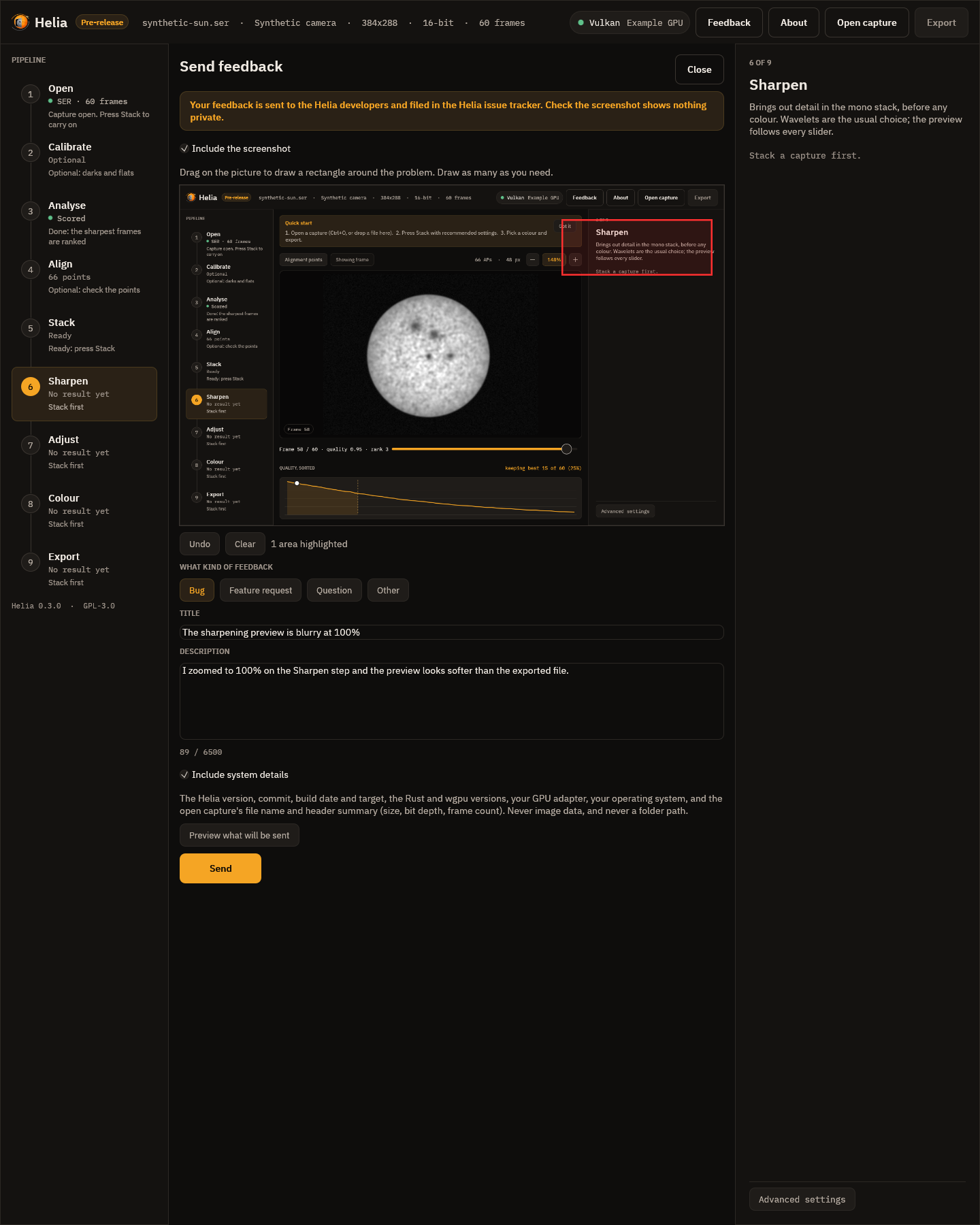
- Highlight the problem. Drag on the screenshot to draw a rectangle round it. Draw as many as you need; Undo removes the last, Clear removes them all. If the screenshot would show something private, untick Include the screenshot.
- Choose the kind: Bug, Feature request, Question or Other.
- Write a title (one line, up to 120 characters) and a description (up to 6500 characters; the rest of the 8000 is kept for the system details).
- Decide about system details and look at Preview what will be sent.
- Press Send.
Sending runs in the background and the window stays usable. A notice says Preparing your feedback (Helia asks the service for a small puzzle and solves it, which takes well under a second; it keeps casual spam out) and then Sending your feedback, with a Cancel button. When the service has filed the issue the page shows its number as a link, and a notice confirms it.
Press Esc or Close to leave the page; what you typed is kept until you send it or quit.
When the service cannot be reached
If the feedback service is down, busy or unreachable, or you are offline, nothing is lost. The page says what happened and offers:
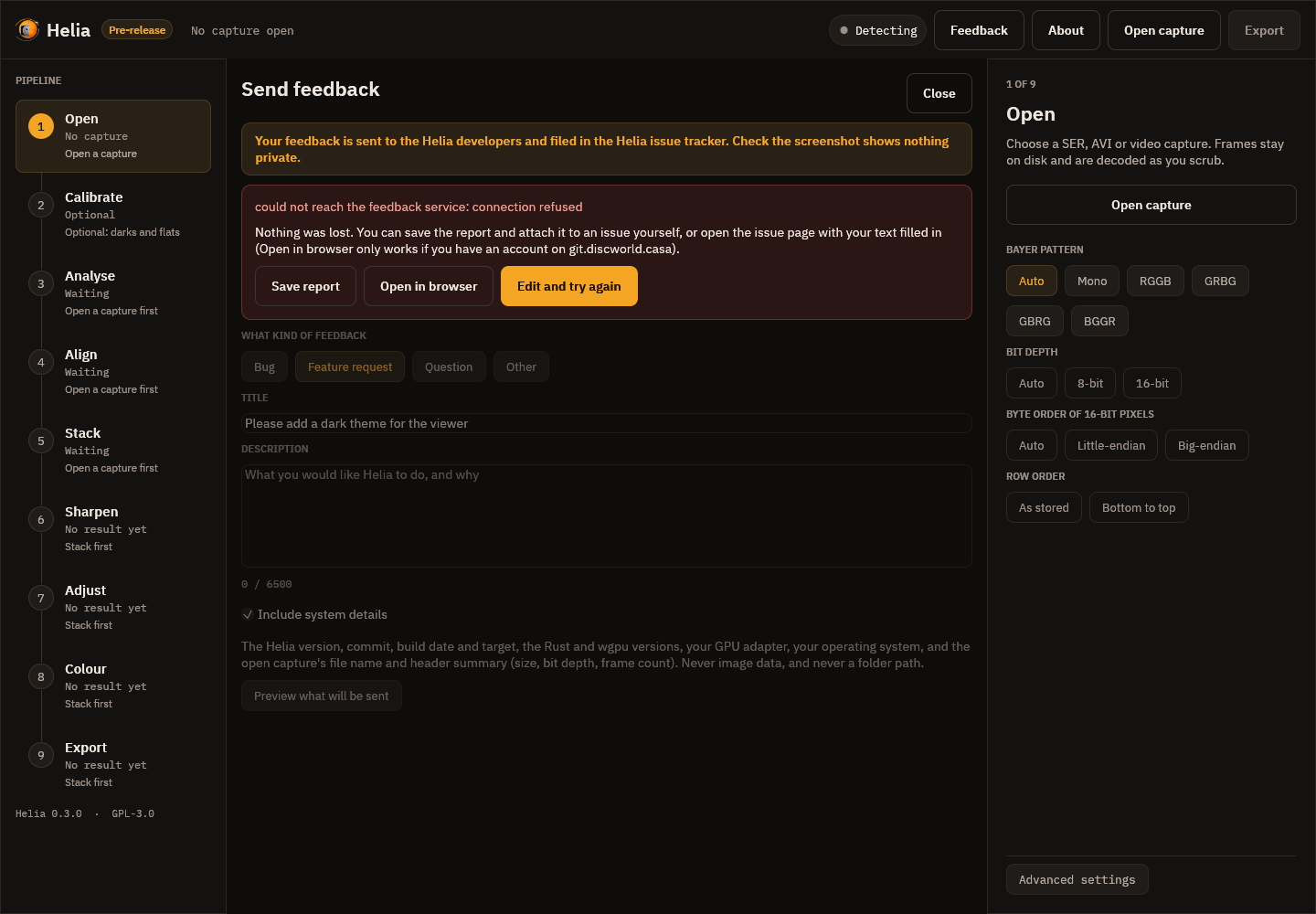
- Save report writes a
.zipwithreport.json(including your highlights as numbers),screenshot.png(the screenshot with your rectangles drawn on) andscreenshot-clean.png. Attach it to an issue yourself, or send it to the author. - Open in browser opens the project's new-issue page with the title and text
already filled in. It only works if you have an account on the project's issue tracker, and the screenshot
cannot be attached from here, so attach
screenshot.pngfrom the saved report. - Edit and try again returns to the form.
A bug report for an issue
If you would rather open an issue yourself, Save bug report on the About page
writes a .zip of text only (version, GPU, the open capture's header, settings and
the end of the log) to attach to it. See
Log file and bug report.
From the command line
helia feedback --kind bug --title "Stack fails on my AVI" \
    --description "Fails at the alignment stage with ..." \
    --screenshot problem.png --highlight 40,60,200,120 --system-info
--kind is bug (the default), feature, question or other. --description -
reads the text from standard input. --screenshot takes a PNG (check it first: it is
filed in the issue tracker) and --highlight x,y,w,h draws a rectangle on it, in the
screenshot's pixels; give it more than once for more rectangles. --system-info
adds the version, commit, target and operating system. --dry-run prints exactly
what would be sent and sends nothing. If the service cannot be reached,
--save report.zip keeps the report, and the command prints the pre-filled
new-issue address. See the CLI reference.
Changing the service address
Normally you do not need to. For a private or test service, set the environment
variable HELIA_FEEDBACK_URL, or put feedback_url=https://... in the app's
settings file, or use --url on the command line. The
variable wins over the file, and --url wins over the variable. The address must be HTTPS (plain HTTP only for
localhost).
For developers
The wire format, the proof of work and the answers are in the feedback protocol.