Quick start
A few steps take you from a capture to a sharp, coloured, shareable picture: open the file, press Stack with recommended settings, then look at the sharpening, choose a colour and export. Helia works out the rest. This page shows the desktop app first, then the command line. You need Helia built or installed as described in Installation.
Have a capture ready
Use a SER or uncompressed AVI file of the Sun (or, with the optional ffmpeg installed, an MP4), ideally a few hundred frames or more. Capturing for Helia explains how to record a good one.
Put the filter in the file name. Helia reads the name of the file, the
folder it is in, the SharpCap sidecar and the SER header for the filter, and
recommends settings for it: 2026-10-19_Sun_Ha_001.ser, CaK_session/capture.ser
and sodium-d.avi are all recognised. Part of a word does not count, so
Hampshire is not H-alpha. If Helia cannot tell, it asks once. The words it
looks for are in Colourising.
No capture to hand? From a source checkout you can write a synthetic one (a made-up sun with known blur and shifts, 400 frames, 320 by 288 pixels):
cargo xtask sample synthetic-sun_Ha.ser
It is a way to try the tools, not a picture of the real Sun. The _Ha in the
name makes Helia treat it as an H-alpha capture.
With the desktop app
Start the app, optionally with a file:
helia-gui synthetic-sun_Ha.ser
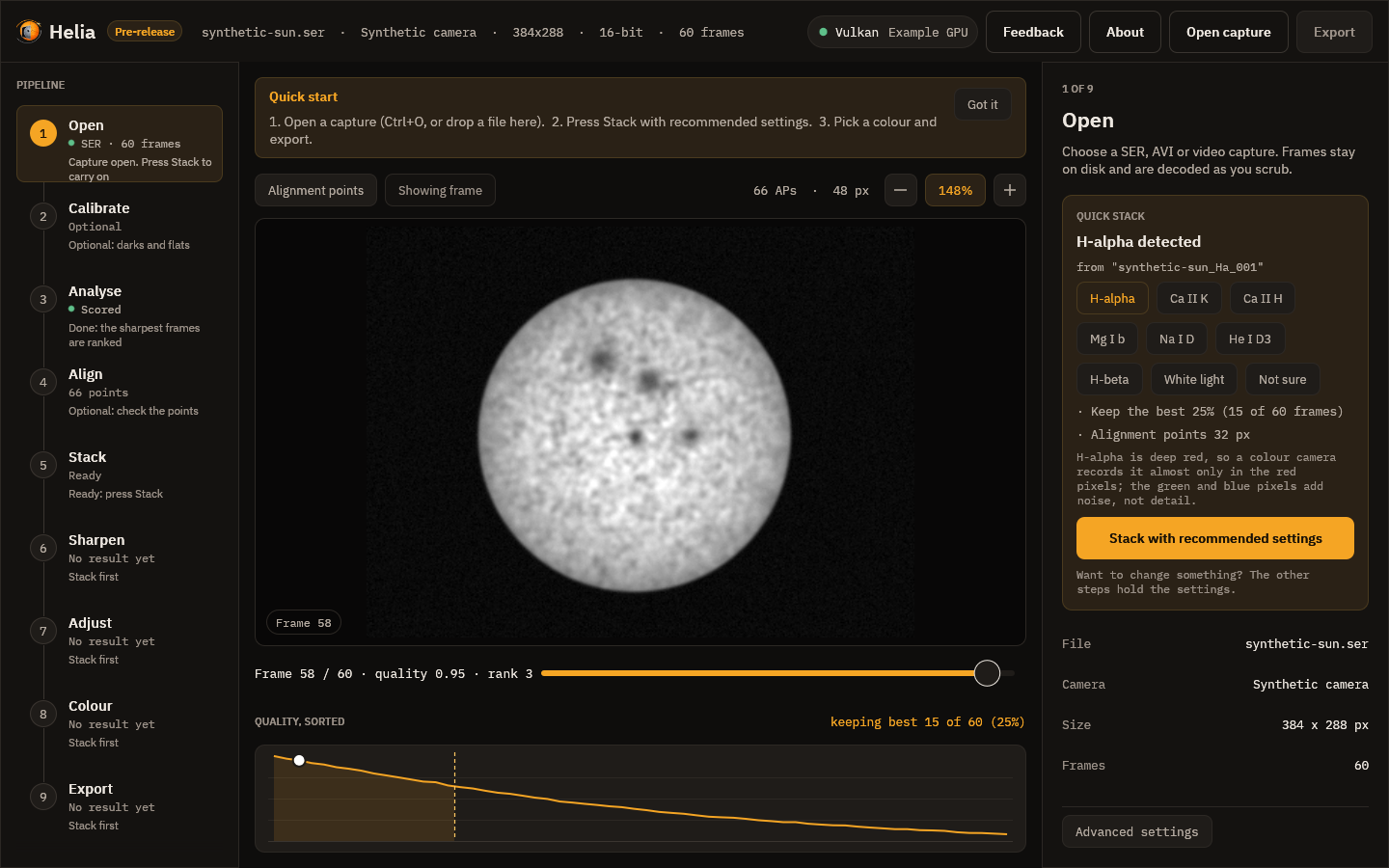
The first time, a short Quick start strip reminds you of these steps. Press Got it and it never comes back; Helia remembers in its settings file.
-
Open. Press Ctrl+O (or choose Open capture) and pick the file, or drop it on the window. The Quick stack card appears on the right. It says which filter Helia found and from what, and lists the settings it will use: the colour channel (for colour cameras), the share of frames to keep, and the alignment point size for your image. If it guessed wrong, press the right filter; if the filter is not in the list, press Not sure for plain defaults.
-
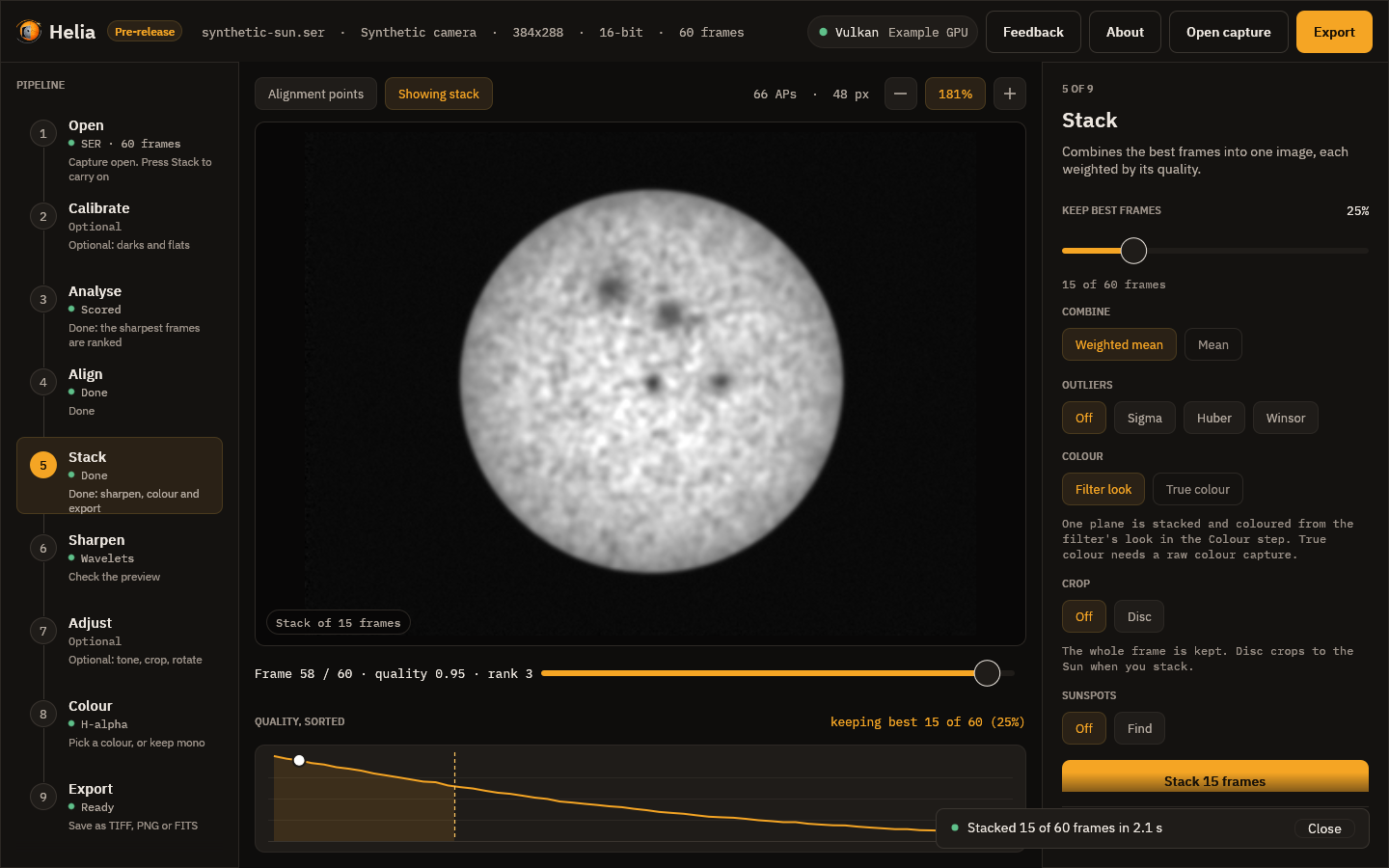
Stack. Press Stack with recommended settings. A notice above the picture says what Helia is doing (scoring the frames, aligning them, stacking) with a progress bar and the time left, and a Cancel button. When it finishes, a message says how many frames went into the stack and how long it took, and then fades away.
-
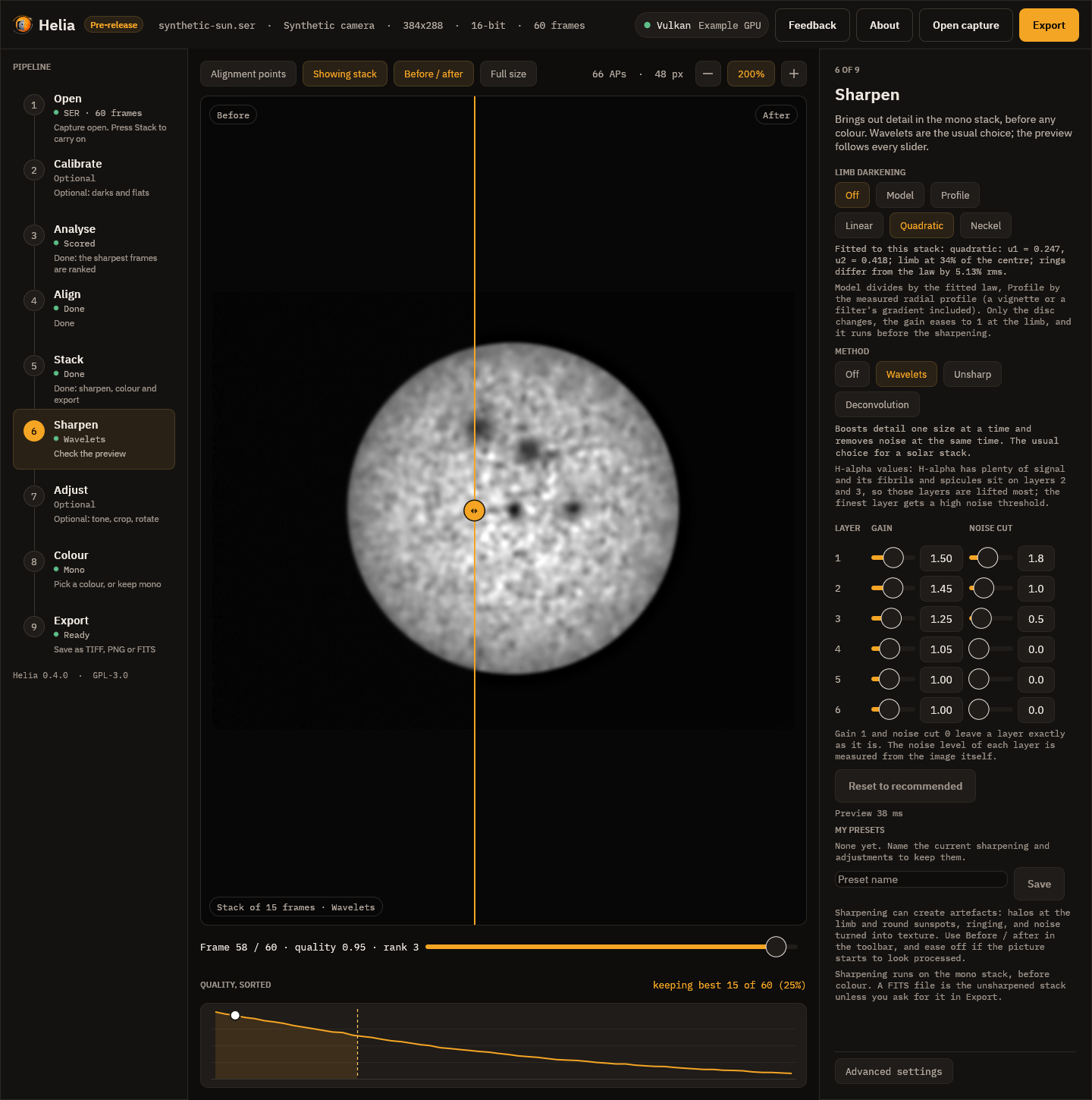
Sharpen. Helia moves on to the Sharpen step. The recommended wavelets for your filter are already applied, so the picture is sharpened; press Before / after to compare it with the plain stack, drag a slider to change something, or press Off to skip it. Sharpening can create artefacts, so look closely; see Sharpening and adjustments.
-
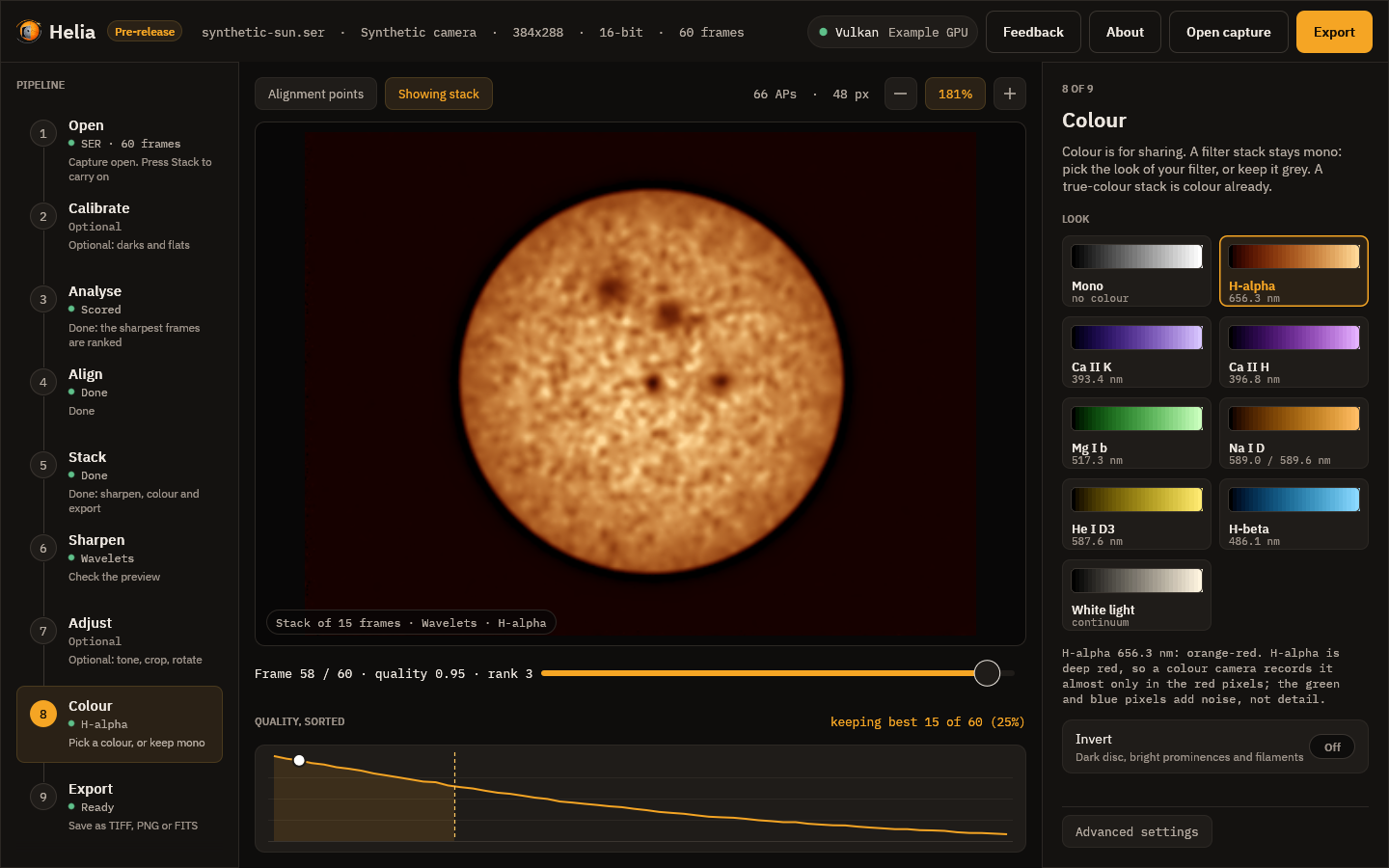
Choose a colour. Next is the Colour step. The stack is shown in the colours of your filter, such as orange for H-alpha. Pick another look if you like, turn on Invert to bring out prominences, or keep it grey. Colour is for sharing; see Colourising.
-
Export. Choose TIFF, PNG or FITS and press Save as, or press Ctrl+E. The step says exactly what will be written, such as 16-bit RGB TIFF, H-alpha colours, with the edits. A FITS file is the unsharpened stack unless you turn on Edit the FITS too.
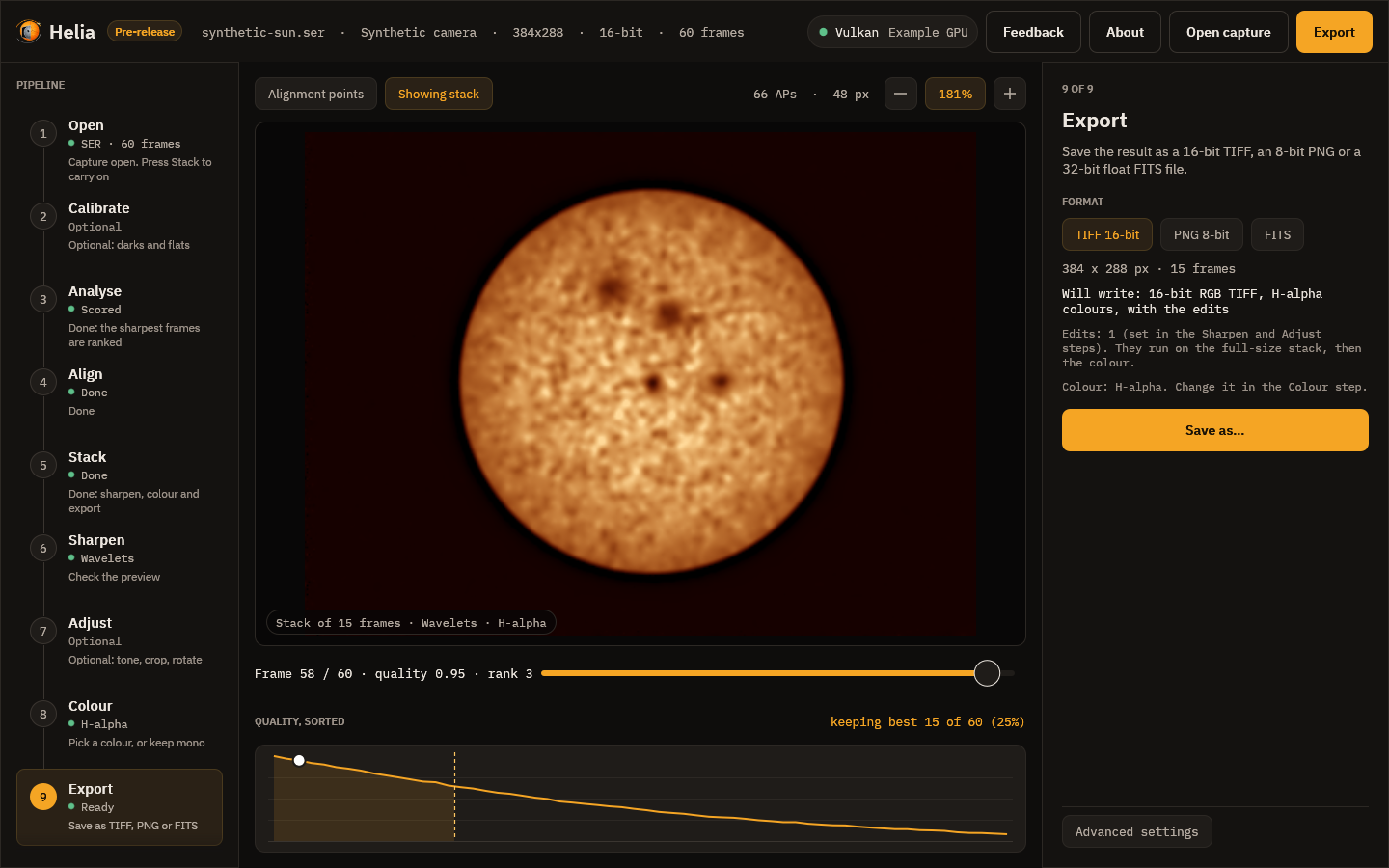
Every step in the rail on the left carries a one-line hint about what to do next: Open a capture, Ready: press Stack, Done: sharpen, colour and export. If you want to change a setting, the other steps hold them, and Advanced settings at the foot of the right-hand panel shows the backend, demosaic method and channel. Using the desktop app describes every control.
With the command line
First, check Helia can read the file:
helia info synthetic-sun_Ha.ser
file:        synthetic-sun_Ha.ser
format:      SER
size:        320 x 288
colour:      Mono
depth:       16 bit
byte order:  header flag says little-endian, pixel data decoded as little-endian
frames:      400
timestamps:  absent
Then stack it. With nothing but an input and an output, Helia detects the filter, the channel and the alignment point size itself:
helia stack synthetic-sun_Ha.ser -o sun.tif
The output extension picks the format: .tif for a 16-bit TIFF, .png for an
8-bit PNG, .fits for FITS. Helia prints the choices it made, a line as each
stage starts, and then a summary. This is the real output for the synthetic
capture above, run on the CPU of a 24-thread server (--backend cpu); the
timings are that machine's, not a promise:
input:    SER 320x288 16-bit, 400 frames
backend:  CPU (24 threads)
settings: H-alpha (from "synthetic-sun_Ha"); keep 25%, alignment points 32 px
tip:      add --colour auto for H-alpha colours
[   0.0s] scoring frames
[   0.1s] building reference
[   0.1s] aligning frames
[   0.1s] measuring alignment points
[   0.3s] stacking
[   0.3s] finishing
[   0.3s] writing
frames:  400 total, 100 kept, 200 registered
points:  123 of 399 alignment points active
disc:    centre (164.5, 146.9), radius 100.4 px
detail:  stack 0.00526 vs best single frame 0.00525 (1.00x)
timing:  scoring frames 0.06s, building reference 0.01s, aligning frames 0.03s, measuring alignment points 0.12s, stacking 0.06s, finishing 0.00s (total 0.31s)
wrote:   sun.tif
Reading it:
- settings is what Helia chose and why. A colour camera in H-alpha would
also say
red channel. Anything you pass on the command line (--keep,--ap-size,--channel) wins over the recommendation. - kept is the number of frames that went into the stack. The default is
the best 25 per cent (12 per cent for the photospheric filters, white light and Na D); change it with
--keep 10%or--keep-frames 500. - registered is how many frames were aligned. With multi-point alignment Helia registers twice as many frames as it keeps, so each alignment point can choose its own best ones. See How stacking works.
- points is how many alignment points were bright and detailed enough to measure.
- detail compares the sharpness of the stack with that of the best single frame (a synthetic capture has nothing to sharpen, so it reads 1.00x), and timing gives the time of each stage.
--quiet hides the stage lines, the progress bar and the summary.
The file is greyscale. To colour it for your filter, add --preset, which also
applies the filter's recommended channel and frame share:
helia stack synthetic-sun_Ha.ser -o sun-ha.tif --preset ha
helia stack cak.ser -o cak.png --preset cak --invert
helia presets                      # the presets and what each does
--preset colours .tif and .png output. A .fits file stays mono and
unaltered; the preset is noted in its header. See
Colourising for what each look is and why.
Useful variations:
helia stack sun.ser -o sun.fits --keep 10%     # fewer, better frames, FITS output
helia stack sun.ser -o sun.tif --ap-size 48    # smaller alignment points
helia stack sun.ser -o sun.tif --backend cpu   # force the CPU
helia stack sun.ser -o sun.tif --quiet         # no progress bar, no summary
Add --sharpen wavelet to sharpen the stack with the recommended values for the
filter (and unsharp, rl or none); it runs on the mono stack before any
colour. A FITS file stays the unsharpened stack unless you add --sharpen-fits.
helia edit sharpens and adjusts an image that already exists. See
Sharpening and adjustments. The full list of options is in
The command line and the CLI reference.
What next
- Sharpen well, and know the risks: Sharpening and adjustments.
- Understand the colours and the presets: Colourising.
- Record a better capture: Capturing for Helia.
- Understand the settings: How stacking works.
- Something not right: Troubleshooting and FAQ.