6. Sharpen
A stack is clean but soft. This step brings the fine detail back. It works on the mono stack, before any colour, and is non-destructive: your choices are a list of operations applied to the stack for the preview and again, at full size, when you export.
Sharpening can create artefacts. Halos beside bright edges, ringing at the limb and round sunspots, and noise that turns into a texture that looks like detail. None of the methods can add detail that the telescope and the seeing did not record. Ease off as soon as the picture looks different in kind rather than just crisper.
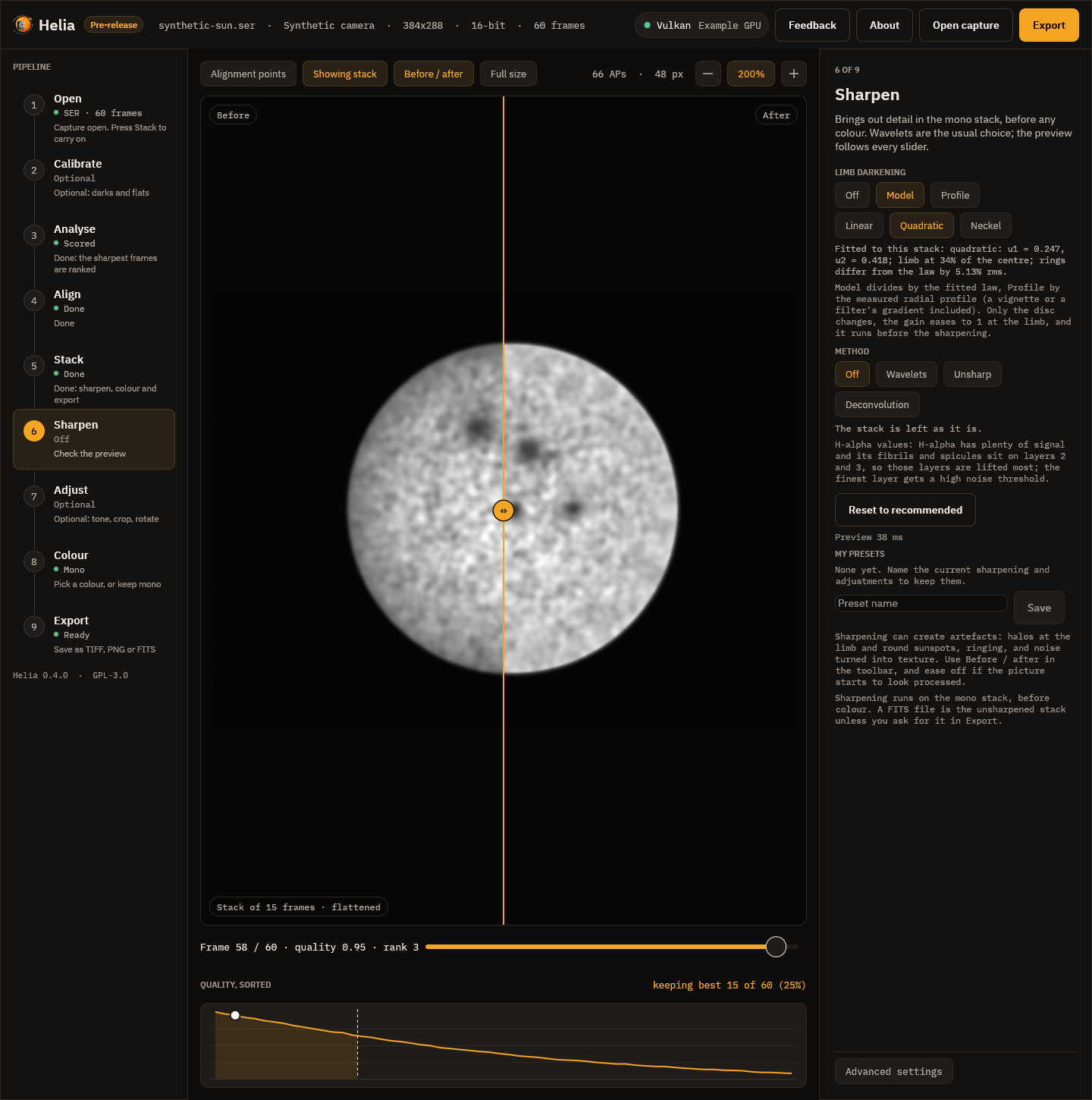
Limb darkening
The first control is Limb darkening: Off, Model or Profile, and the law to fit (Linear, Quadratic, Neckel). The line under the chips is the fit made on your stack, for example quadratic: u1 = 0.470, u2 = 0.046; limb at 48% of the centre; rings differ from the law by 0.67% rms. Model divides the disc by that law and Profile by the measured radial profile, so the sharpening below sees flat contrast from the centre to the limb. Only the disc changes. It is off by default; try it with Before / after, and see Limb darkening for what the fit measures on real captures.
The method chips
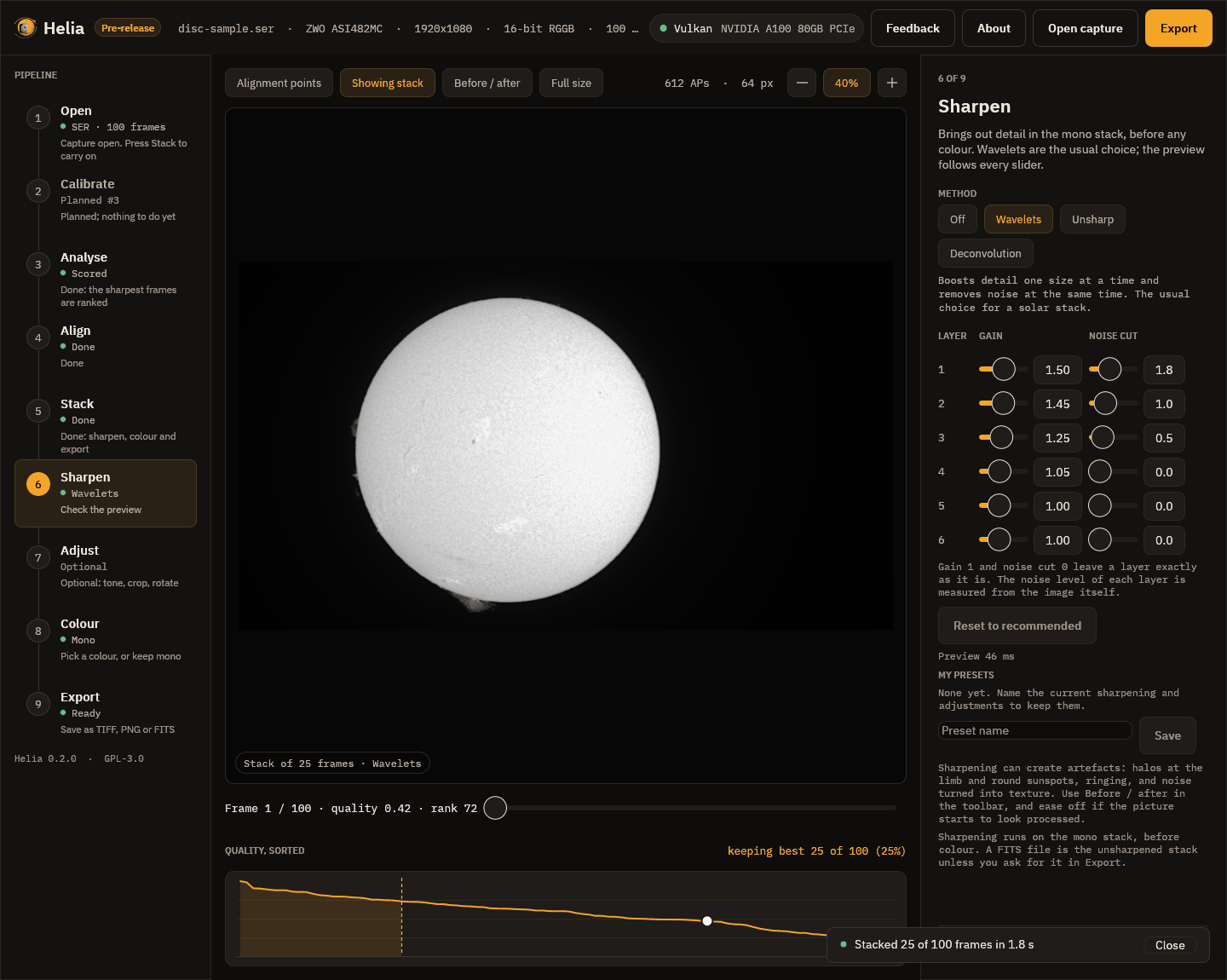
The row of chips at the top picks the method: Off, Wavelets, Unsharp or Deconvolution. Helia has already switched on the recommended wavelets for your filter, so the picture you see when you arrive is sharpened. Press Off to see the plain stack. Every slider updates the picture as you drag it, and a line says how long the last preview took (42 ms in the picture).
Two chips above the picture help you judge: Before / after splits the picture at a line you can drag (the stack as it was on the left, with your edits on the right), and Full size renders the preview at full size rather than shrunk. A preview is a close look, not a proof: what is written is always made from the full-size stack.
Wavelets
The image is split into six layers by the size of detail. Layer 1 holds the finest detail and most of the noise, layer 2 fine detail such as granulation and fibrils, and higher layers bigger structure. Each layer has a gain (1 leaves it alone, above 1 sharpens it) and a noise cut (detail weaker than this many noise sigmas is treated as noise and removed). The recommended values for a filter are in Sharpening and adjustments. Reset to recommended puts them back.
Here is the effect on the real full-disc stack. This is a crop of the stacked image, the plain stack on the left and the recommended wavelets on the right:
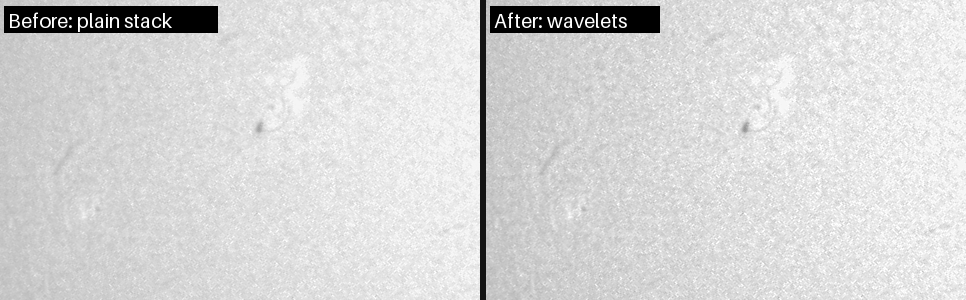
The change is modest, and it should be: this is 25 frames, in an ordinary afternoon's seeing. The filament at the left and the bright plage at the top right are crisper and the background grain is finer, not coarser.
Unsharp mask
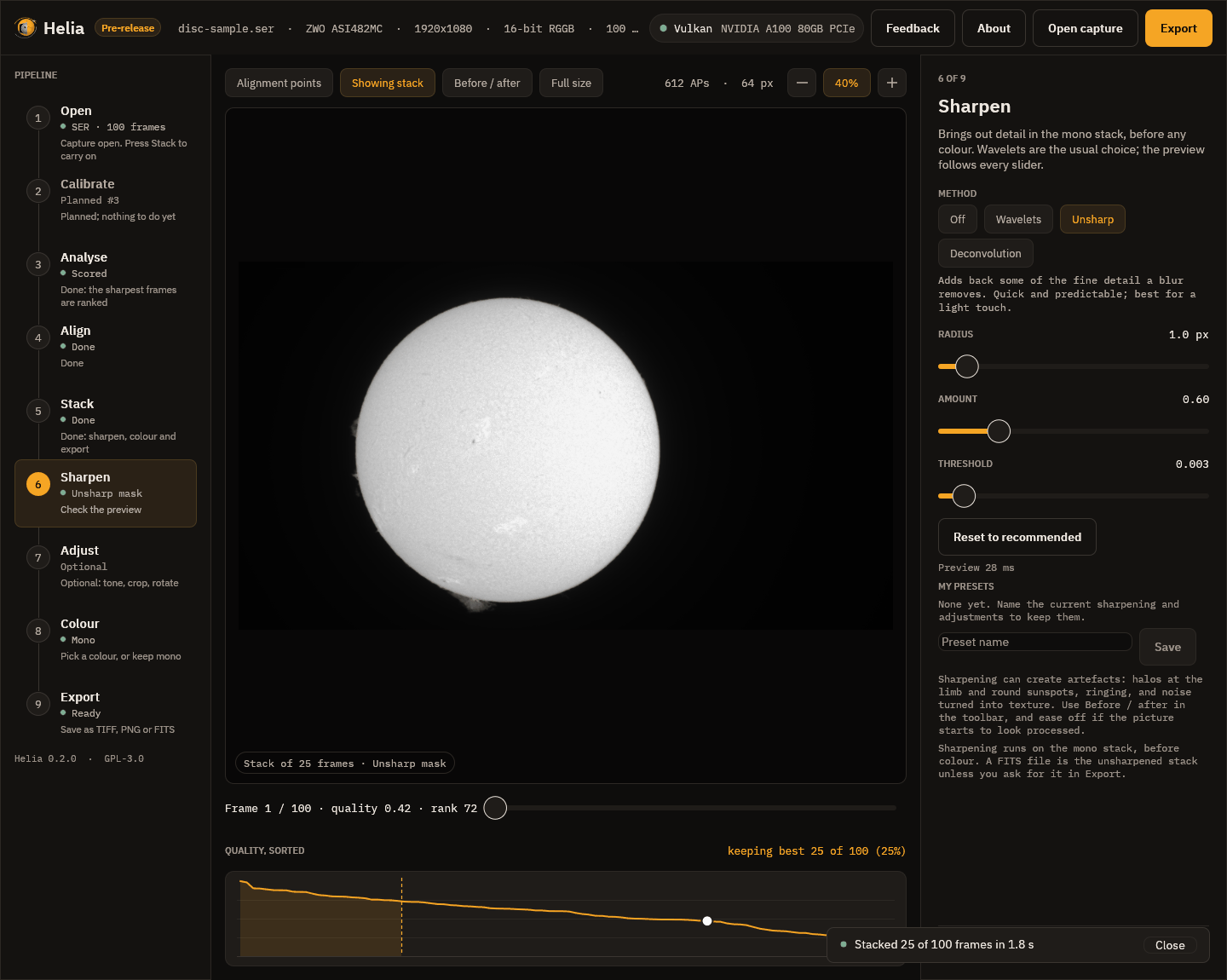
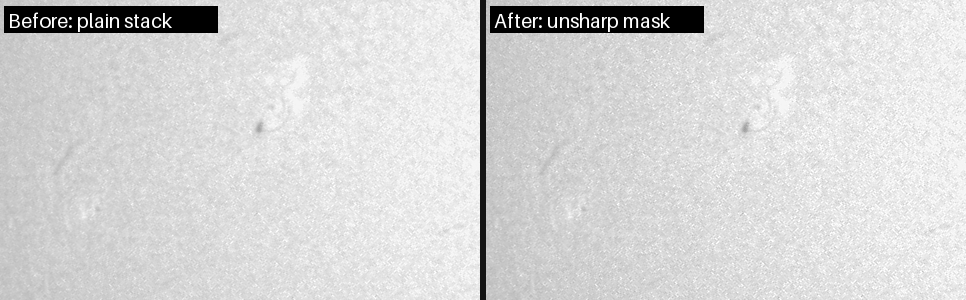
The radius is the size of the blur that is subtracted, which picks the size of detail that is boosted. The amount is how much of the difference is added back (0.6 is gentle, 2 strong). The threshold leaves weaker detail alone so noise is not boosted. It is a light, predictable touch:
Deconvolution
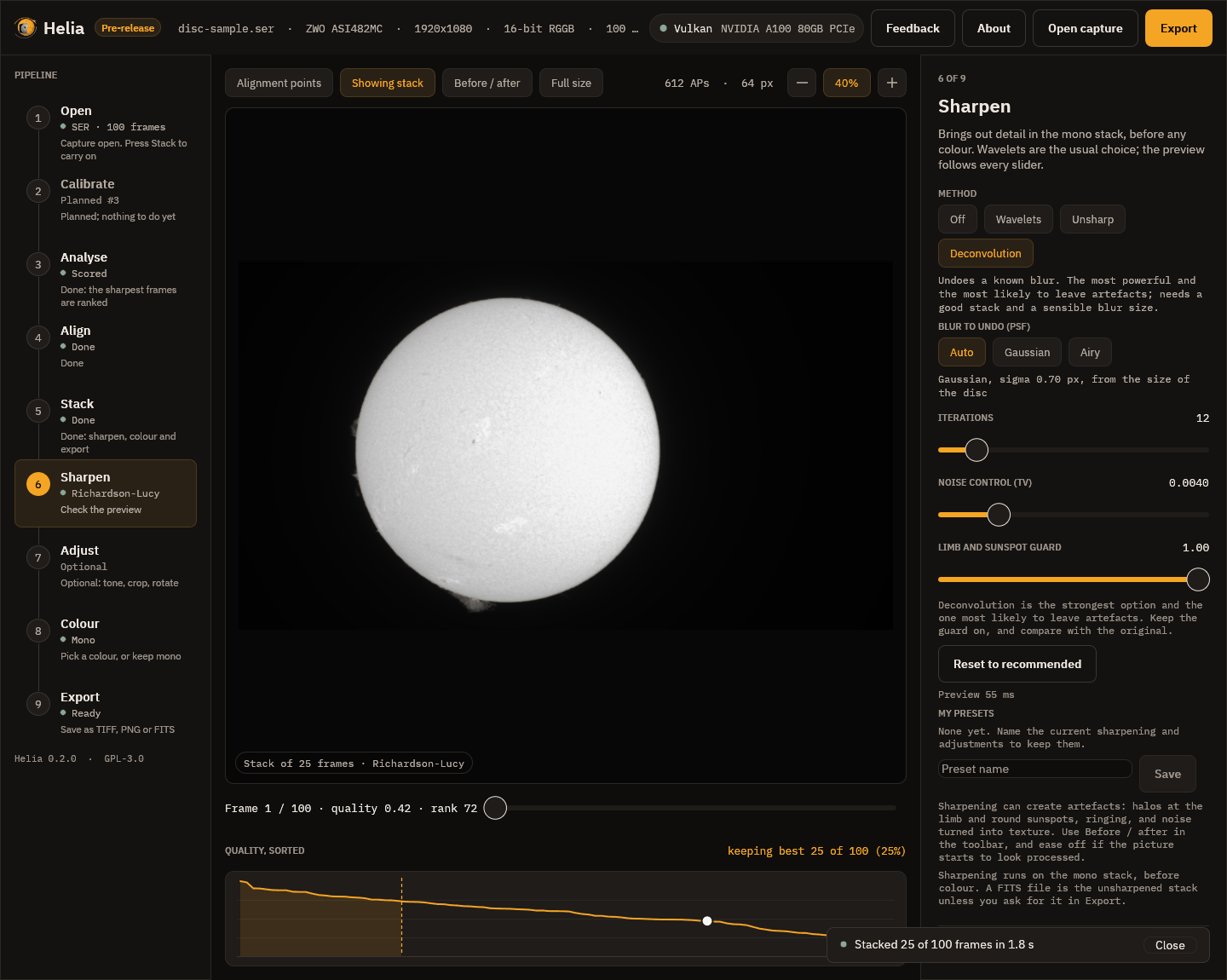
Richardson-Lucy deconvolution tries to undo the blur itself, by repeated correction. It has the blur to undo (the PSF), the number of iterations, a noise control and a limb and sunspot guard that stops the bright halo that a bright edge would otherwise grow. It is the strongest and the riskiest method.
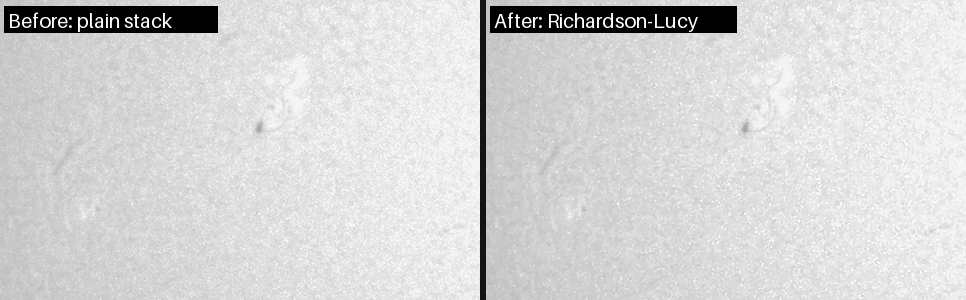
On this capture it gains little and makes the grain coarser, which is why wavelets are the default: stop when noise starts to look like texture. The page Sharpening and adjustments has the measurements on four real captures.
My presets
My presets, below the controls, keeps the whole set of sharpening and
adjustments under a name. Type a name and press Save; press a preset to use it.
The command line takes the same presets with --edits.