1. Open a capture
Press Ctrl+O, choose Open capture in the top bar, or drop a file on the window. Helia reads SER and uncompressed AVI files, and with the optional ffmpeg installed also MP4, MOV, MKV and WebM (see Installation).
While it opens, a notice above the picture says Opening the file and indexing its frames. Nothing is loaded into memory: the frames stay on disk and are decoded as you scrub.
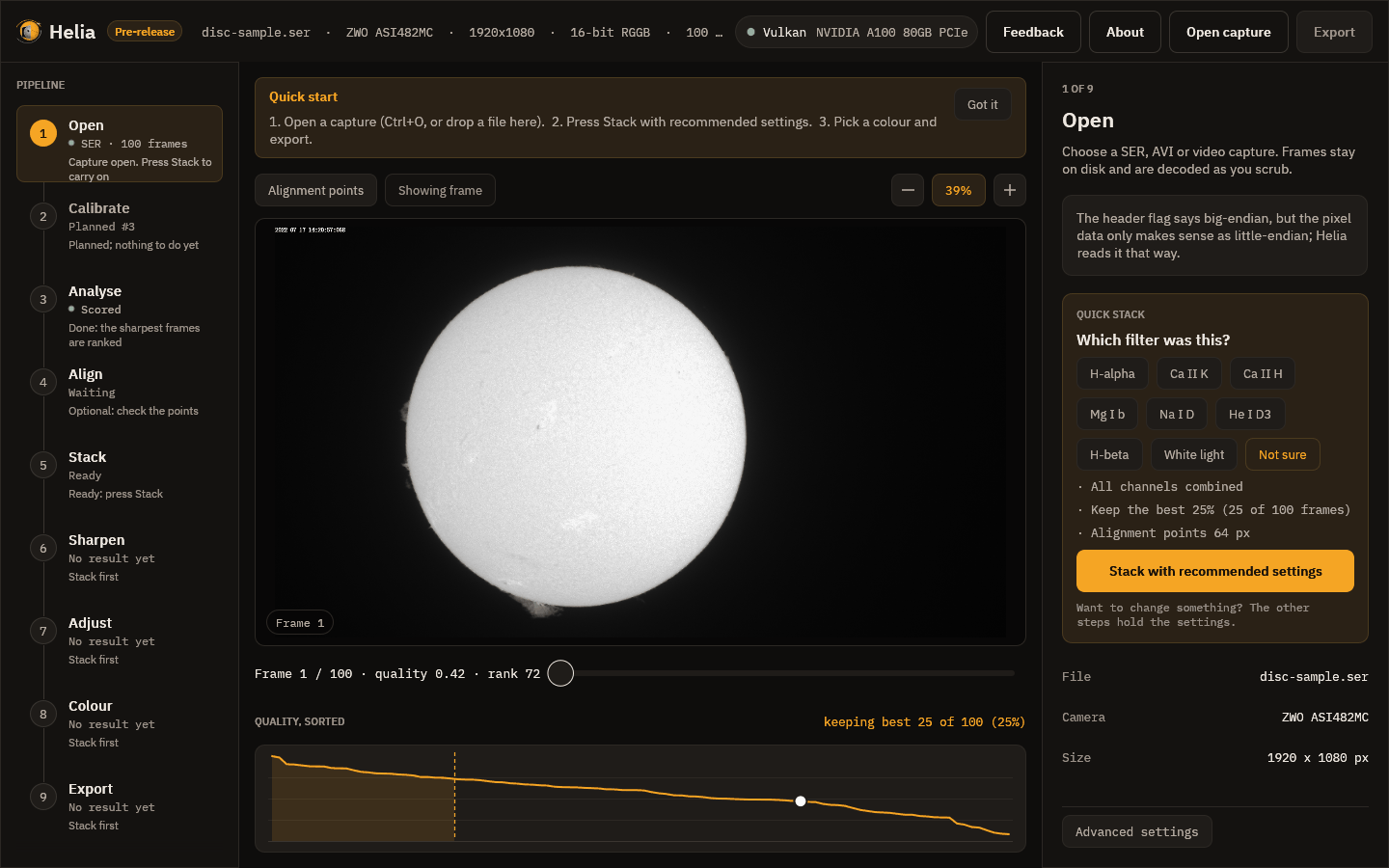
What you see
- Top bar. The Helia name with a Pre-release badge while the version is below 1.0, then the file name, the camera, the frame size, the bit depth with the Bayer pattern, and the number of frames (a long line is cut short with an ellipsis). On the right, the compute backend, then Feedback, About, Open capture and Export.
- Pipeline rail on the left: nine steps, each with its state and a one-line hint. Click a step to select it.
- Viewer in the middle: the first frame, a frame scrubber (drag it, or use the arrow keys) and the quality curve, every frame's sharpness sorted from best to worst. The dashed line marks where the frames you will keep end.
- Inspector on the right: the settings of the selected step. In Open it holds the notice about the file, the Quick stack card, the file facts and the overrides.
In the picture above, Helia noticed something about the file: the header flag says big-endian, but the pixel data only makes sense as little-endian; Helia reads it that way. That is a common quirk of SER files and it is handled for you. Every such decision is written down in the notice, never made silently.
A capture Helia recognises
Helia reads the filter from the file name, the folder, the SharpCap sidecar and
the SER header. This capture is called ha-sample.avi, so Helia knows it is
H-alpha and says where it got that from:
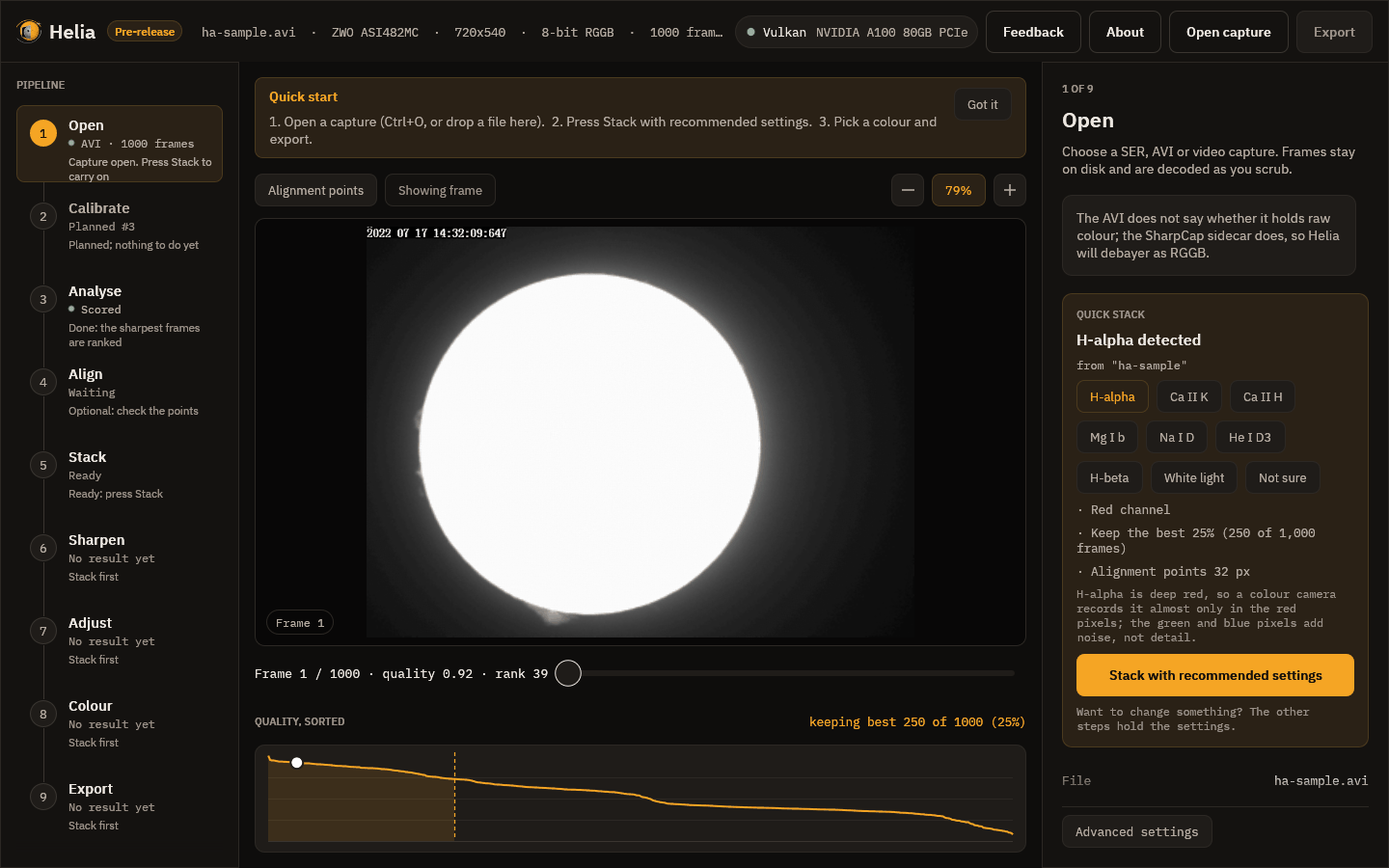
The card lists what it will use: the red channel (H-alpha is deep red, so a colour camera records it almost only in the red pixels), the best 25 per cent of the frames (250 of 1,000) and an alignment point size. The note above the card says the AVI does not state its Bayer pattern but the SharpCap sidecar does, so Helia debayers it as RGGB. If the filter's name is not in the file name, the card asks Which filter was this? and you press the right one, or Not sure for plain defaults, as in the first picture.
When the header is wrong
Some recorders label a colour camera's raw frames as mono. If you stacked such a file as it says, you would get a fine grid in the result. Helia checks the pixels of a SER file that says mono, and when it finds a mosaic it tells you:
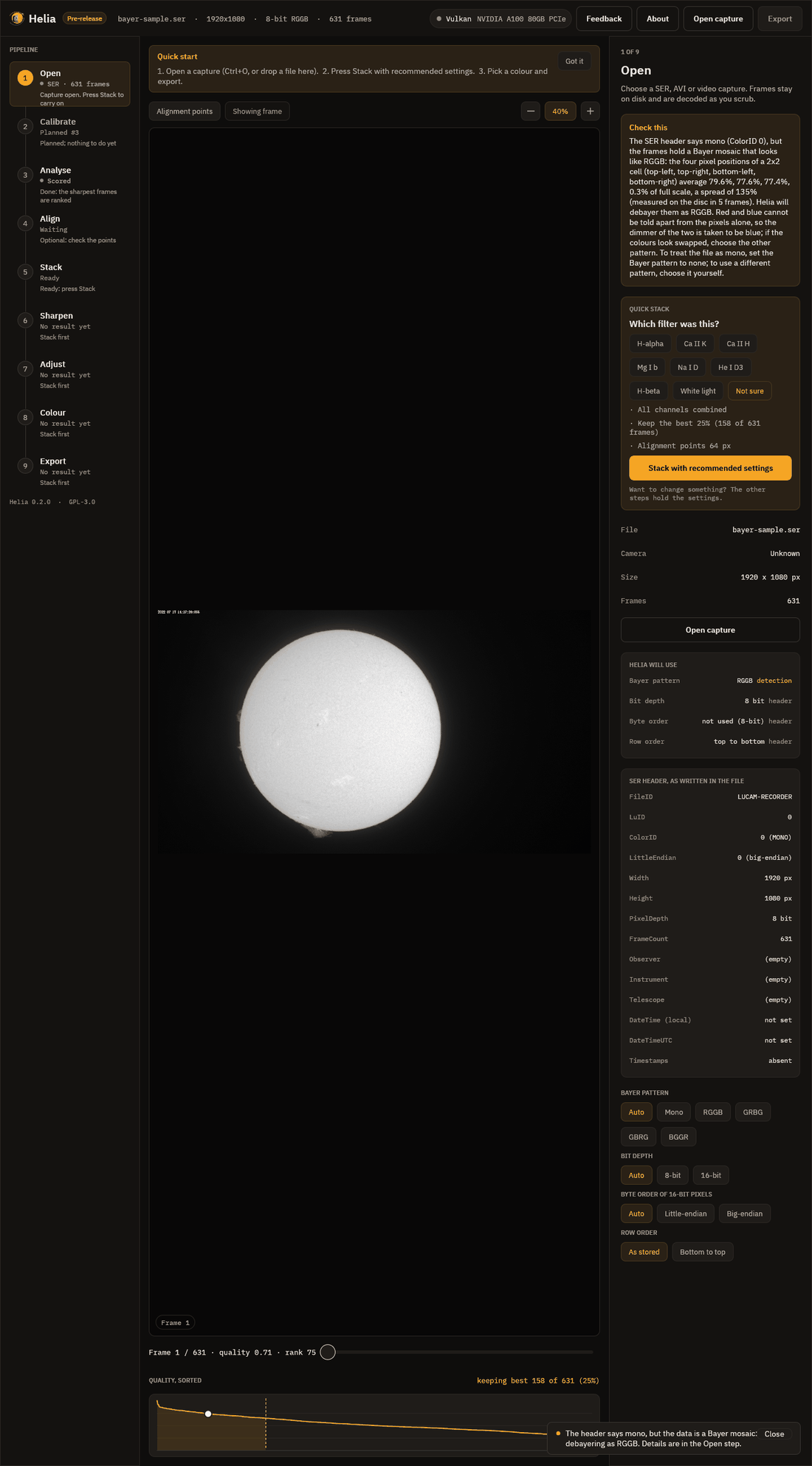
Read the picture from the top:
- Check this explains, in words, what the file says and what the pixels say. Here the header says mono (ColorID 0), the pixels are an RGGB mosaic, and Helia will debayer as RGGB. A short message also appears at the bottom of the window.
- Helia will use lists the Bayer pattern, bit depth, byte order and row order
with where each came from:
header,sidecar,detectionoroverride. Anything that is not straight from the header is shown in the accent colour. Here the Bayer pattern isRGGB, fromdetection. - SER header, as written in the file shows every field exactly as stored: FileID, ColorID with its meaning, endianness, size, depth, frame count, observer, instrument, telescope, and whether times are set.
- The overrides, the rows of buttons at the foot: Bayer pattern, bit depth,
byte order and row order. Each reopens the capture with your choice, and the
list above updates to show
overrideas the source.
If Helia is right, do nothing. If you know better, press the pattern that is true
(or Mono if the file really is mono). If the colours come out swapped after
stacking, try the other pattern of the same family: RGGB or BGGR, GRBG or GBRG.
The recipe Fixing a Bayer grid covers it, and
helia info on the command line prints the same lists.
Overrides belong to the file: opening another capture starts again from Auto.
Next
Quick stack is the one-button route. If you want to see each step instead, go on to Analyse.