11. Send feedback
Helia is a pre-release, and the quickest way to make it better is to tell the project what is wrong or missing.
Version note. The Feedback button is in the release after v0.2.0. The released v0.2.0 does not have it; use the issue tracker as described under Without the button below.
With the button
A Feedback button in the top bar (and Ctrl+Shift+F), at any step, takes a picture of the Helia window and opens a page where you:
- draw rectangles on the picture round the problem;
- say whether it is a bug, a feature request, a question or something else;
- write a title and a description;
- choose whether to include the screenshot and system details, and look at exactly what will be sent;
- press Send.
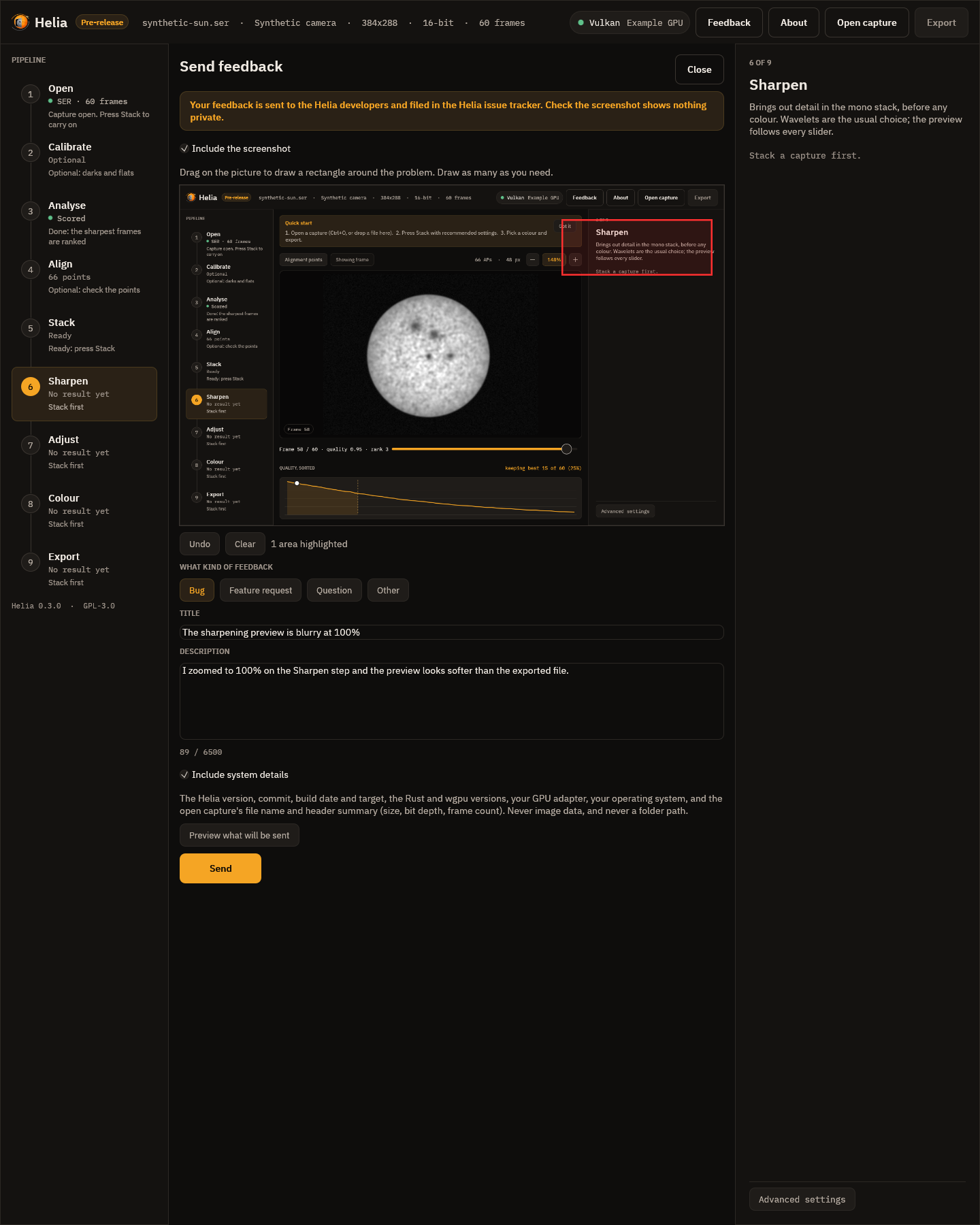
It is sent to the Helia developers and filed in the Helia issue tracker. Three things to know:
- Nothing is sent until you press Send. Helia has no telemetry: it never reports usage or errors by itself.
- Check the screenshot. It is filed with your report. The screenshot is of the Helia window, which can show the file name of your capture. Untick Include the screenshot if in doubt.
- If the service cannot be reached nothing is lost: you can save the report as a file, or open the new-issue page in your browser with the text filled in (that only works if you have an account on the project's issue tracker).
There is a matching command for people without a display, helia feedback. The
whole walk-through, what is and is not included, and what happens when the service
is down, are in Sending feedback.
Without the button
Contact the author through 12hobbies.studio. A report is most useful with:
- the output of
helia --versionor the Copy version info button on About; - your operating system, your graphics card and driver;
- what you did, what you expected and what happened;
- the output of
helia infoon the capture, which has no image data in it, and if you can, a short capture (a few hundred frames) that shows the problem.