9. Export
Choose a format, press Save as, and say where to put it. Ctrl+E does the same from any step.
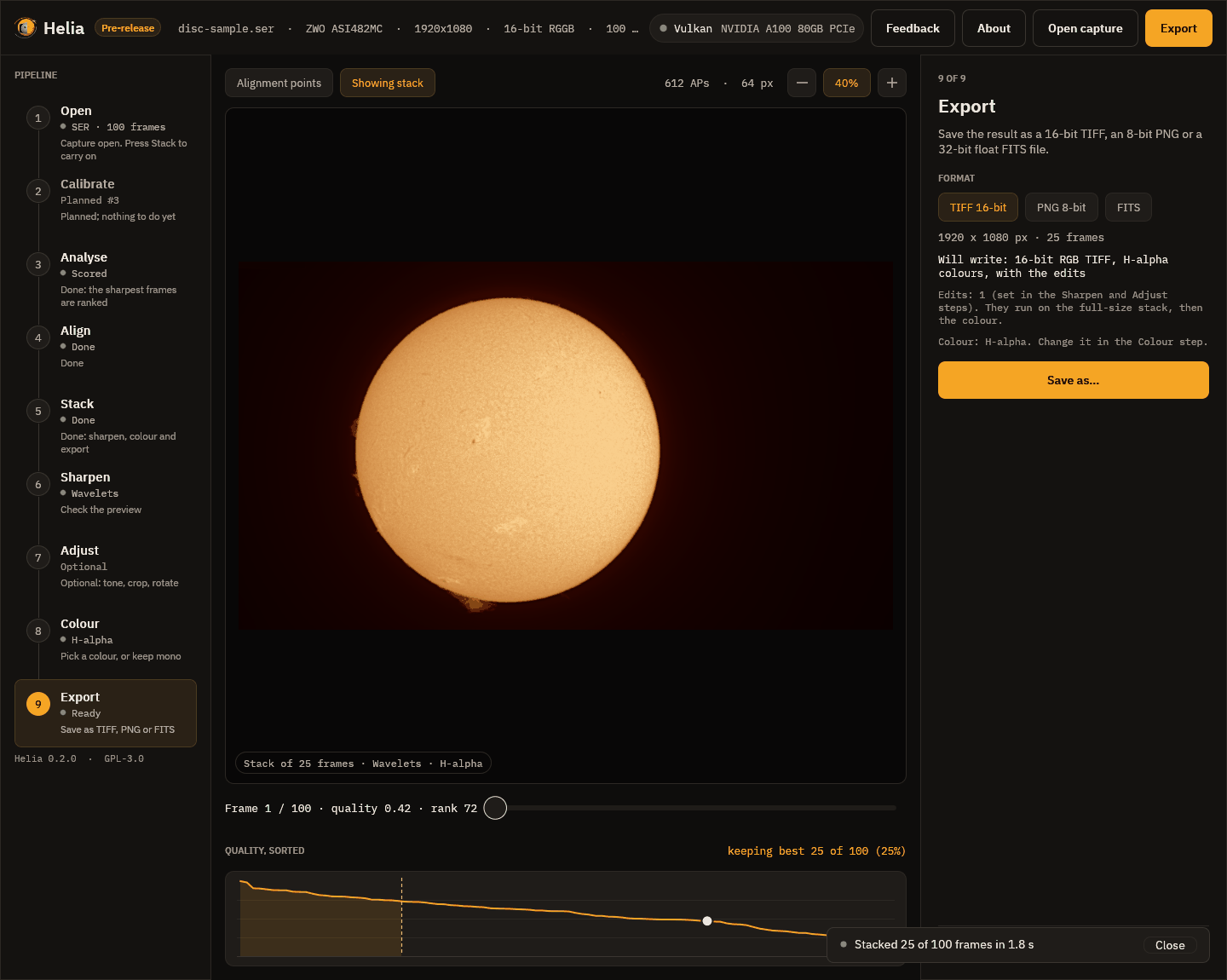
| Format | What it is | Use it for |
|---|---|---|
| TIFF 16-bit | Greyscale or RGB, 16 bits per channel | Your master picture, and any further editing |
| PNG 8-bit | Greyscale or RGB, 8 bits per channel | Sharing on the web and in messages |
| FITS | 32-bit floating point; mono, or a three-plane cube for a true-colour stack | Measurement and further processing |
The step says exactly what will be written, here 16-bit RGB TIFF, H-alpha colours, with the edits, and what produced it: the edits (the number of sharpening and adjustment operations) and the colour look. The edits run on the full-size stack, then the colour is applied. Writing happens in the background with a notice, and a message confirms where the file went.
What the files say
Every file notes how it was made, so a picture can be repeated and understood
later. For TIFF the note is in the ImageDescription tag, for PNG in the
Description chunk, and for FITS in HISTORY cards. It lists the edits in words
and as a list that can be reused, and the colour look. The Bayer decisions
(including a header that was wrong) are recorded too. See
What the files say.
FITS and SOLARNET
A FITS file is the unsharpened stack, because it is for further processing;
the edits go into TIFF and PNG. Turn on Edit the FITS too if you want them in
it, and the step says which it will be. The header carries observation keywords in
the SOLARNET convention,
partially compliant (SOLARNET = 0.5), plus what Helia knows of the capture. The details,
including how to give your observing site for the position keywords (--site),
are in Output formats.
From the command line
The extension picks the format:
helia stack disc-sample.ser -o sun.tif --preset ha --sharpen wavelet
helia stack disc-sample.ser -o sun.png --preset ha --sharpen wavelet
helia stack disc-sample.ser -o sun.fits