Tutorial: bringing out prominences in H-alpha
A worked example on a real H-alpha capture: 15_32_09.avi (720 by 540, mono, 1000
frames, the disc 223 pixels in radius). It shows how to make the prominences above the
limb readable without burning out the disc, and how to adjust the result the way a
prominence processor such as IMPPG lets you. The method and measurements are in
Prominences and the disc together.
1. Stack, sharpen and colour as usual
helia stack 15_32_09.avi -o ha-plain.tif --preset ha --sharpen wavelet --colour auto
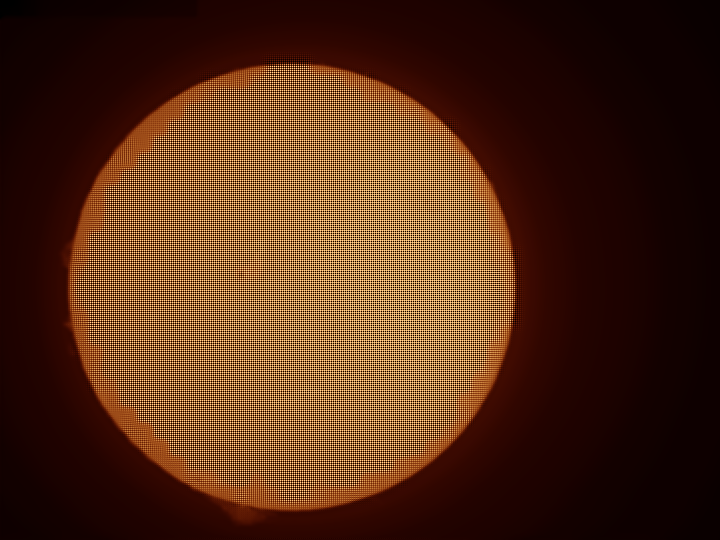
The disc is fine, but the prominences on the left limb and at the bottom are a faint smudge inside a halo of scattered light.
2. Turn on the prominence layer
In the app this is the Adjust step, and the Prominence layer is the first section. Switch it on and the preview shows the composite. On the command line:
helia stack 15_32_09.avi -o ha-prom.tif --preset ha --sharpen wavelet \
    --prominence --colour auto
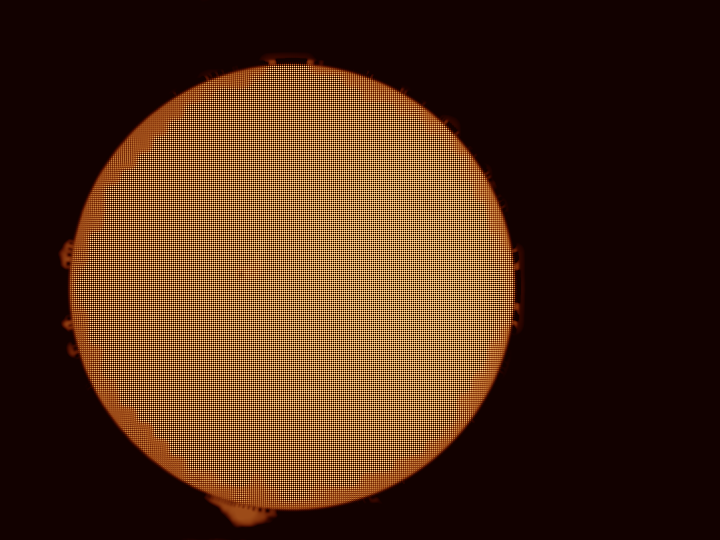
With the defaults the brightest 1% of the ring just outside the limb goes from 0.33 to 0.69 of the disc's brightness, the glow in that ring from 0.087 to 0, and the disc inside 0.9 of the radius is bit-identical.
3. Adjust it
Work through the sliders in this order (all have the live preview; defaults in brackets):
- Level (0.75): how bright the brightest prominence should be next to the disc. Raise it for a bolder picture.
- Strength (1) and Stretch (6): how hard the faint parts are lifted. Strength scales the signal before the stretch; Stretch bends the curve (0 is linear). Faint wisps appear as Stretch rises, until the noise does.
- Gate (3 sigma): how much noise is cut away. Raise it if the sky speckles, lower it to let the faintest structure through.
- Join offset (0) and Feather (0.012 of the radius): where the disc meets the layer and how soft the join is. If a thin dark or bright ring shows at the limb, widen the feather or move the join out by a few thousandths of a radius.
- Layer gamma (1) and Disc gamma (1): a separate tone for the layer and for the disc, like the separate adjustment of disc and prominences in IMPPG. Raise the layer gamma to darken faint haze; raise the disc gamma to bring out filaments on a bright disc. With both at 1 nothing but the layer changes.
- Reach (1.4 radii): how far out the layer goes before it fades to black. Lower it when the frame is cut off close to the limb.
Levels and the tone curve below the layer apply to the whole picture afterwards.
4. Export a colour table
To colour the same stack in another program: Colour step, Colour table, or
helia lut ha -o ha.cube.
What to expect and what can go wrong
| What you see | Why | What to do |
|---|---|---|
| Dark arcs next to the limb | The glow is much stronger on one side | Raise Gate a little; widen Feather |
| Speckle all round the disc | Stretch too high for the noise | Lower Stretch or Strength, raise Gate |
| No prominences appear | The capture has none, or they are below the noise | Check the sharpened stack; stack more frames |
| The layer looks flat near a frame edge | The ring is cut by the frame | Lower Reach |
| The picture is unchanged | The limb fit failed (no clear disc) | Frame the whole disc |
On the second capture of that day (15_37_19.avi) the same settings take the brightest
1% of the ring from 0.25 to 0.71 of the disc.